


Stacking separate shapes to fake a single icon leaves you with overlapping paths that bloat the SVG and render inconsistently across browsers. Boolean operations merge those shapes into one clean path: this guide shows what Union, Subtract, Intersect, and Exclude each produce, then how to apply them in IconVectors and outline strokes so the result stays reliable.
What the four boolean operations do
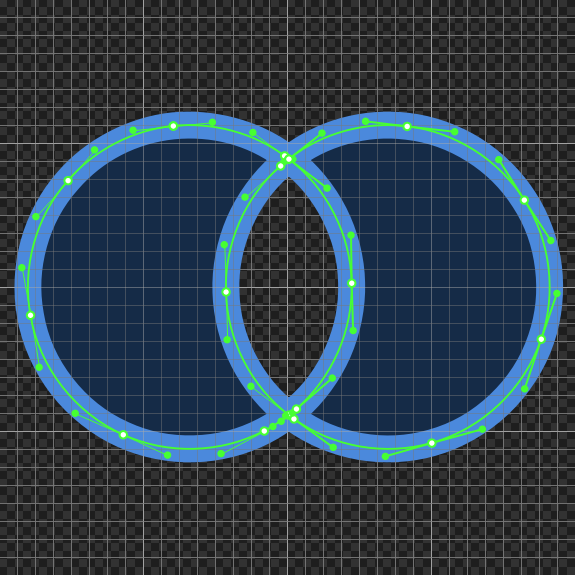
A boolean operation combines two or more overlapping shapes into a single path, removing redundant geometry so the exported SVG is smaller and renders the same everywhere. You need at least two shapes selected. The examples below start from these two overlapping ellipses:
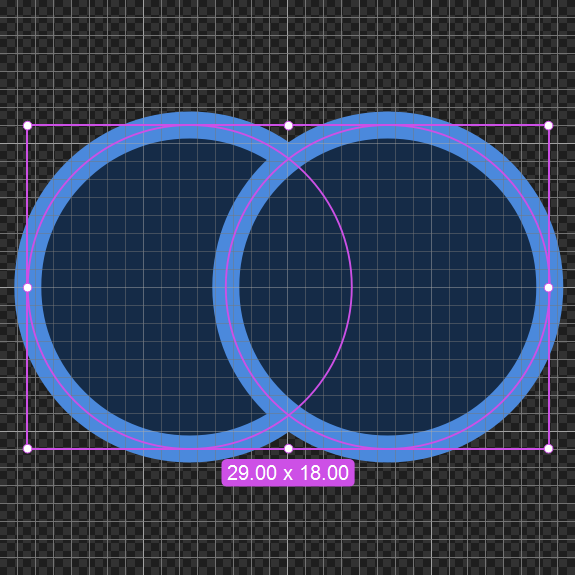
Here is the SVG code before any boolean operation is applied:
      <?xml version="1.0" encoding="utf-8"?>
<svg xmlns="http://www.w3.org/2000/svg" version="1.1" xmlns:xlink="http://www.w3.org/1999/xlink"
id="Icon 1" viewBox="0 0 32 32">
  <ellipse fill="#152B47" stroke="#4B89DC" stroke-width="1.5" cx="10.6" cy="16" rx="9" ry="9"/>
  <ellipse fill="#152B47" stroke="#4B89DC" stroke-width="1.5" cx="21.6" cy="16" rx="9" ry="9"/>
</svg>
Union
Union merges all selected shapes into one outline, keeping the stroke and fill of the underlying shapes. Use it to weld separate parts of an icon together:
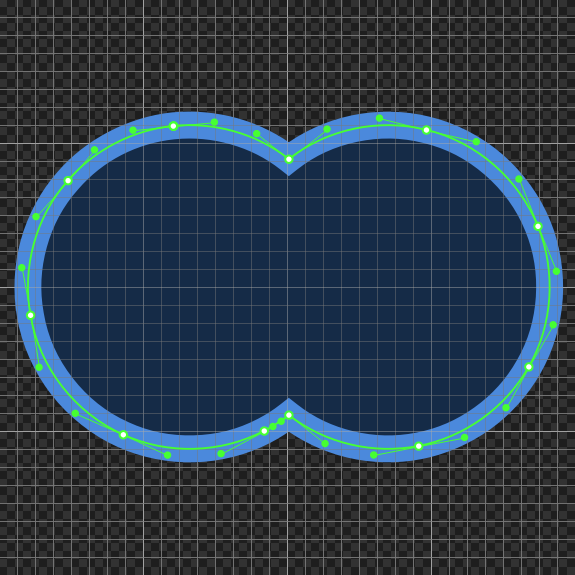
Here is the resulting SVG code. Notice how the two ellipses are combined into a single <path> element:
<?xml version="1.0" encoding="utf-8"?>
<svg xmlns="http://www.w3.org/2000/svg" version="1.1" xmlns:xlink="http://www.w3.org/1999/xlink"
id="Icon 1" viewBox="0 0 32 32">
  <path fill="#152B47" stroke="#4B89DC" stroke-width="1.5" d="M9.68,7.05C7.44,7.28,5.3,8.37,
  3.83,10.08C2.05,12.08,1.26,14.92,1.75,17.56C2.22,20.45,4.23,23.01,6.9,24.2C9.36,25.33,12.33,
  25.25,14.73,23.99C15.21,23.74,15.67,23.45,16.1,23.11C18.11,24.69,20.81,25.32,23.31,24.83
  C25.86,24.35,28.16,22.7,29.43,20.43C30.78,18.09,30.96,15.12,29.94,12.62C28.88,9.99,26.51,7.92,
  23.74,7.27C21.13,6.61,18.22,7.22,16.1,8.89C14.31,7.47,11.96,6.83,9.7,7.05L9.68,7.05z"/>
</svg>
Subtract
Subtract removes the area of the top shape from the one beneath it, leaving a cutout. Here the front ellipse carves a crescent out of the back one (the IconVectors menu labels this command Substract Path):
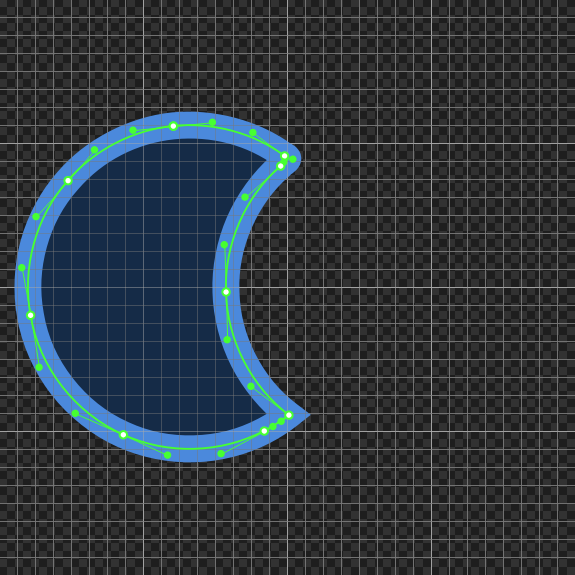
Here is the resulting SVG code. The front ellipse has carved out a cutout from the ellipse behind it:
<?xml version="1.0" encoding="utf-8"?>
<svg xmlns="http://www.w3.org/2000/svg" version="1.1" xmlns:xlink="http://www.w3.org/1999/xlink"
id="Icon 1" viewBox="0 0 32 32">
  <path fill="#152B47" stroke="#4B89DC" stroke-width="1.5" d="M9.68,7.05C7.44,7.28,5.3,8.37,3.83,
  10.08C2.05,12.08,1.26,14.92,1.75,17.56C2.22,20.45,4.23,23.01,6.9,24.2C9.36,25.33,12.33,25.25,14.73,
  23.99C15.21,23.74,15.67,23.45,16.1,23.11C13.99,21.51,12.67,18.92,12.61,16.27C12.51,13.64,13.66,11,
  15.64,9.27C15.81,9.06,16.32,8.89,15.86,8.71C14.1,7.41,11.85,6.84,9.68,7.05z"/>
</svg>
Intersect
Intersect keeps only the area where the selected shapes overlap and discards the rest:
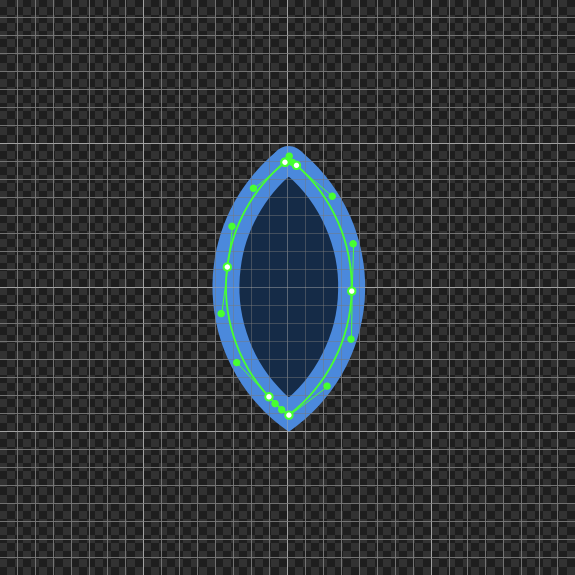
Here is the resulting SVG code. The resulting path is limited to the overlapping area:
<?xml version="1.0" encoding="utf-8"?>
<svg xmlns="http://www.w3.org/2000/svg" version="1.1" xmlns:xlink="http://www.w3.org/1999/xlink"
id="Icon 1" viewBox="0 0 32 32">
  <path fill="#152B47" stroke="#4B89DC" stroke-width="1.5" d="M15.88,9.06C14.13,10.51,12.94,12.62,
  12.68,14.88C12.34,17.47,13.2,20.19,14.99,22.09C15.33,22.47,15.7,22.81,16.1,23.11C18.22,21.5,19.55,
  18.89,19.59,16.22C19.67,13.59,18.51,10.95,16.52,9.23C16.3,9.07,16.12,8.72,15.88,9.06z"/>
</svg>
Exclude
Exclude (also called XOR) removes the overlapping area and keeps everything else, producing a compound path:
Here is the resulting SVG code. The resulting path is a compound path containing all the non-overlapping areas:
<?xml version="1.0" encoding="utf-8"?>
<svg xmlns="http://www.w3.org/2000/svg" version="1.1" xmlns:xlink="http://www.w3.org/1999/xlink"
id="Icon 1" viewBox="0 0 32 32">
  <path fill="#152B47" stroke="#4B89DC" stroke-width="1.5" d="M9.68,7.05 C7.44,7.28 5.3,8.37 3.83,
  10.08 C2.05,12.08 1.26,14.92 1.75,17.56 C2.22,20.45 4.23,23.01 6.9,24.2 C9.36,25.33 12.33,25.25 14.73,
  23.99 C15.21,23.74 15.67,23.45 16.1,23.11 C13.99,21.51 12.67,18.92 12.61,16.27 C12.51,13.64 13.66,
  11 15.64,9.27 C15.81,9.05 16.32,8.89 15.86,8.71 C14.1,7.41 11.85,6.84 9.68,7.05 Z M16.1,8.89 C18.22,
  10.5 19.55,13.11 19.59,15.78 C19.67,18.41 18.51,21.05 16.52,22.77 C16.3,22.98 15.92,23.14 16.38,23.32
  C18.56,24.9 21.46,25.4 24.04,24.66 C26.85,23.89 29.2,21.65 30.12,18.89 C30.99,16.35 30.65,13.41 29.18,
  11.16 C27.76,8.91 25.31,7.37 22.67,7.07 C20.36,6.79 17.94,7.44 16.1,8.89 Z"/>
</svg>
Outline strokes first. Boolean operations act on filled geometry, so a stroked outline is ignored unless you convert it to a filled path beforehand. The steps below cover when and how to do that.
Apply boolean operations in IconVectors
The Source Code viewer you open with F3 (View → Source Code) is read-only, so use it to verify the SVG, not to edit it. Apply the operations through the menu commands below:
- Open your icon in IconVectors.
- Select the shapes you want to combine (on the canvas or in the Element list).
- Apply a boolean operation:
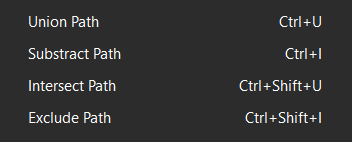
- Go to Path → Union (Ctrl+U), Subtract (Ctrl+I), Intersect (Shift+Ctrl+U), or Exclude (Shift+Ctrl+I).
- Result: a cleaner path (fewer overlaps) ready for export.
- Go to Path → Union (Ctrl+U), Subtract (Ctrl+I), Intersect (Shift+Ctrl+U), or Exclude (Shift+Ctrl+I).
- Working with strokes? Convert them first:
- Select stroked elements.
- Choose Path → Outline Stroke to turn the visible outline into a filled path.
- Now re‑run your boolean operation on the resulting filled shapes.
- Optional: adjust thickness — use Path → Offset Path to expand/contract a path evenly before/after operations.
- Verify with
F3(read‑only). In the SVG tab you should now see fewer<path>elements and simplifiedddata. Confirm yourviewBoxis set correctly. - Export your icon:
- Use your usual export using Copy in the Code Window (F3), or File → Export → Export Minified for a compact SVG.
Troubleshooting
- Subtract removed the wrong part — order matters. The topmost selected shape is subtracted from the one below. Reorder in the Element list or change selection order.
- Operation is disabled — ensure you’ve selected paths (not groups or images). If you have strokes, run Outline Stroke first.
- Unexpected holes — check the resulting path’s
fill-rule(even‑odd vs non‑zero) in the Source Code viewer (F3). Adjust via the UI if needed. - Edges look uneven after scaling — if you’re scaling in your app, consider
vector-effect="non-scaling-stroke"(for stroked icons) or convert to filled geometry.
Related guides
Start Making SVG Icons Today with IconVectors
Download the fully-functional 30‑Day Free Trial and unlock your icon design workflow.
Version 2.00 for Windows (September 3, 2026), macOS (September 15, 2026), and Linux (September 18, 2026).