


An icon with a hard-coded fill="#2563eb" ignores your CSS, so it stays the wrong color in dark mode, on hover, and in every theme you ship. Swap that fill (and any stroke) for currentColor and the same SVG inherits its color from CSS — one file, every state, no re-export. This guide covers the currentColor patterns, then how to apply them in Axialis IconVectors with the Fill and Stroke color menus.
Understanding currentColor (What & Why)
currentColor is a special keyword in CSS/SVG. Wherever you use it in an SVG attribute like fill or stroke, it resolves to the element's computed CSS color. This lets you recolor an icon via CSS (e.g., using utility classes or theme variables) without editing the SVG again.
Basic single-color icon — make the path adopt its parent's color:
<!-- HTML -->
<div class="icon text-blue-600">
  <svg viewBox="0 0 24 24" width="24" height="24">
    <path d="…" fill="currentColor"/>
  </svg>
</div>
Stroke-only icon — transparent fill, colored stroke:
<svg viewBox="0 0 24 24" width="24" height="24">
  <path d="…" fill="none" stroke="currentColor" stroke-width="2"/>
</svg>
Mixed icons — parts can stay fixed while others respond to CSS:
<svg viewBox="0 0 24 24">
  <path d="…" fill="#FFB800"/>           <!-- fixed accent -->
  <path d="…" fill="currentColor"/>      <!-- themable layer -->
</svg>
Theme with CSS variables — switch colors per theme without touching the SVG:
:root { --brand: #2563eb; }
[data-theme="dark"] { --brand: #93c5fd; }

.icon { color: var(--brand); }
<div class="icon">
<svg viewBox="0 0 24 24"><path d="…" fill="currentColor"/></svg>
</div>Theme more than one color. currentColor only gives you one themeable color. For a two-tone icon, drive the extra colors with CSS custom properties and keep a hard-coded fallback so the icon still renders if the variable is missing:
<svg viewBox="0 0 24 24" width="24" height="24">
  <path d="…" fill="currentColor"/>                 <!-- primary, follows color -->
  <path d="…" fill="var(--icon-accent, #FFB800)"/> <!-- accent, follows a variable -->
</svg>
.icon { color: #334155; --icon-accent: #2563eb; }Both color and custom properties are inherited, so they reach inline SVG and also pass through the shadow tree that <use> creates for a sprite. That is why the same variables theme both inline icons and sprite instances.
Inline SVG or sprite, not <img> — currentColor works when the SVG is in the DOM (inline or via <use>). An <img src="icon.svg"> won't inherit CSS color into the file.
<!-- Sprite pattern -->
<svg style="display:none">
  <symbol id="icon-check" viewBox="0 0 24 24">…</symbol>
</svg>

<!-- Instance adopts parent color -->
<svg width="24" height="24" class="text-emerald-600">
  <use href="#icon-check" fill="currentColor"/>
</svg>Tip: if strokes look too thin when scaling up, add vector-effect="non-scaling-stroke":
<path d="…" stroke="currentColor" stroke-width="2" vector-effect="non-scaling-stroke"/>A complete dark-mode recipe
Put the pieces together: a single-color icon that follows text color, a two-tone icon whose accent follows a variable, and one set of theme values that switches on both the system preference and a manual .dark class (the toggle this site uses).
:root {
  --icon: #334155;
  --icon-accent: #2563eb;
}
@media (prefers-color-scheme: dark) {
  :root { --icon: #e2e8f0; --icon-accent: #93c5fd; }
}
/* Manual override: a .dark class on the html element wins over the system preference */
.dark { --icon: #e2e8f0; --icon-accent: #93c5fd; }

.icon { color: var(--icon); }   /* drives currentColor on every child icon */
<!-- Single-color: flips with text color -->
<span class="icon">
<svg viewBox="0 0 24 24" width="24" height="24"><path d="…" fill="currentColor"/></svg>
</span>
<!-- Two-tone: currentColor + one accent variable -->
<span class="icon">
<svg viewBox="0 0 24 24" width="24" height="24">
<path d="…" fill="currentColor"/>
<path d="…" fill="var(--icon-accent)"/>
</svg>
</span>Because color and the custom properties are inherited, one class change on the <html> element recolors every inline and sprite icon on the page at once, with no icon files re-exported.
Doing it in IconVectors
The code viewer you open with F3 (View → Source Code) is read-only. Use the color menus to write currentColor into the SVG for you.
- Open your icon in IconVectors.
- Select the shapes you want to be themeable (on the canvas or in the Element list).
- Set Fill to
currentColor:- Open the Fill color menu.
- Choose the special item
currentColor(marked with a "C" icon in the menu):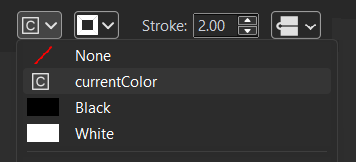
- This writes
fill="currentColor"in the SVG.
- For stroke-based icons, open the Stroke color menu and choose
currentColorthere as well (this writesstroke="currentColor"). - Transparent parts: if a region must stay empty, set Fill to
None(so only the stroke or underlying shapes show). - Verify with
F3(read-only viewer). In the SVG tab you should now seefill="currentColor"orstroke="currentColor"on the selected elements. Use this panel to check theviewBoxis present too (e.g.,viewBox="0 0 24 24"). - Export your icon:
- Use your usual export (or Minified export) to ship a compact file.
Quick examples from IconVectors — after choosing currentColor in the menus, your code will look like:
<!-- Fill-based -->
<path d="…" fill="currentColor"/>

<!-- Stroke-based -->
<path d="…" fill="none" stroke="currentColor" stroke-width="2"/>
Use the result in your app
Plain HTML/CSS — change color with CSS:
<style>
  .btn-icon { color: #2563eb; }        /* any CSS color or variable */
</style>

<button class="btn-icon">
  <svg viewBox="0 0 24 24" width="20" height="20">
    <path d="…" fill="currentColor"/>
  </svg>
  Save
</button>
React — pass color via style or class:
import Check from "./check.svg";

export default function Example() {
  return (
    <div style={{ color: "#16a34a" }}>
      <Check width={20} height={20} />
    </div>
  );
}
Vue — bind color through style or a class on the wrapper:
<template>
  <span :style="{ color: active ? '#16a34a' : '#64748b' }">
    <svg viewBox="0 0 24 24" width="20" height="20">
      <path d="…" fill="currentColor"/>
    </svg>
  </span>
</template>
Sprite — multiple instances, one definition:
<svg style="display:none">
  <symbol id="icon-star" viewBox="0 0 24 24">…</symbol>
</svg>

<svg class="text-amber-500" width="20" height="20"><use href="#icon-star" fill="currentColor"/></svg>
<svg class="text-slate-500" width="20" height="20"><use href="#icon-star" fill="currentColor"/></svg>
Why <img> and external files can't be themed
An <img src="icon.svg">, a CSS background-image, and an icon loaded through <object> all render the SVG in an isolated context that your page CSS cannot reach. The color value and any custom properties stop at that boundary, so currentColor and var(--...) fall back to their defaults and never pick up your theme.
Inline SVG is part of the page DOM, so it inherits normally. A sprite is the in-between case that still works: <use> clones the symbol into a shadow tree, and inherited properties like color and custom properties cross into it, which is why sprite instances theme correctly. Practical guidance:
- Need CSS theming: use inline SVG or a sprite with
<use>. - Stuck with
<img>: you can approximate a single color with a CSSfilter(for example abrightnessandinvertcombination), but it is fragile. Prefer shipping one file per theme if you cannot inline. - Many repeats of one icon: a sprite keeps theming and avoids duplicating markup.
Troubleshooting
- Color doesn't change — at least one shape still has a hard-coded
fill="#…"orstroke="#…". Reselect that shape in IconVectors and set Fill/Stroke tocurrentColor. Then verify in the read-only code view (F3). - Inline works, <img> doesn't — expected. Use inline SVG or a sprite (
<use>). An<img>can't inherit CSScolorinto the SVG file. - Only some parts recolor — that's normal if only those paths use
currentColor. If you want the whole icon to change, setcurrentColorfor all relevant fills/strokes. - Scaling issues with strokes — use
vector-effect="non-scaling-stroke"for uniform stroke width across sizes.
Related guides
- Accessible SVG Icons (ARIA roles & labels)
- How to Use SVG Icons in Web Applications
- Pixel-Perfect SVG Icons
Start Making SVG Icons Today with IconVectors
Download the fully-functional 30‑Day Free Trial and unlock your icon design workflow.
Version 2.10 for Windows - October 6, 2026. macOS and Linux: version 2.00 available now, 2.10 coming soon.