

IconVectors 2.20 for Windows: VS Code, Styles and CLI
Editing an icon often means moving between SVG markup, a visual editor and a folder of related assets. IconVectors 2.20 for Windows connects those jobs with a bundled Visual Studio Code extension, reusable Styles and an independent command-line interface.
The release also adds editable SVG import diagnostics, automatic management of embedded styles and faster navigation through an icon set. It is available for Windows 32-bit and 64-bit.
Edit SVGs from Visual Studio Code
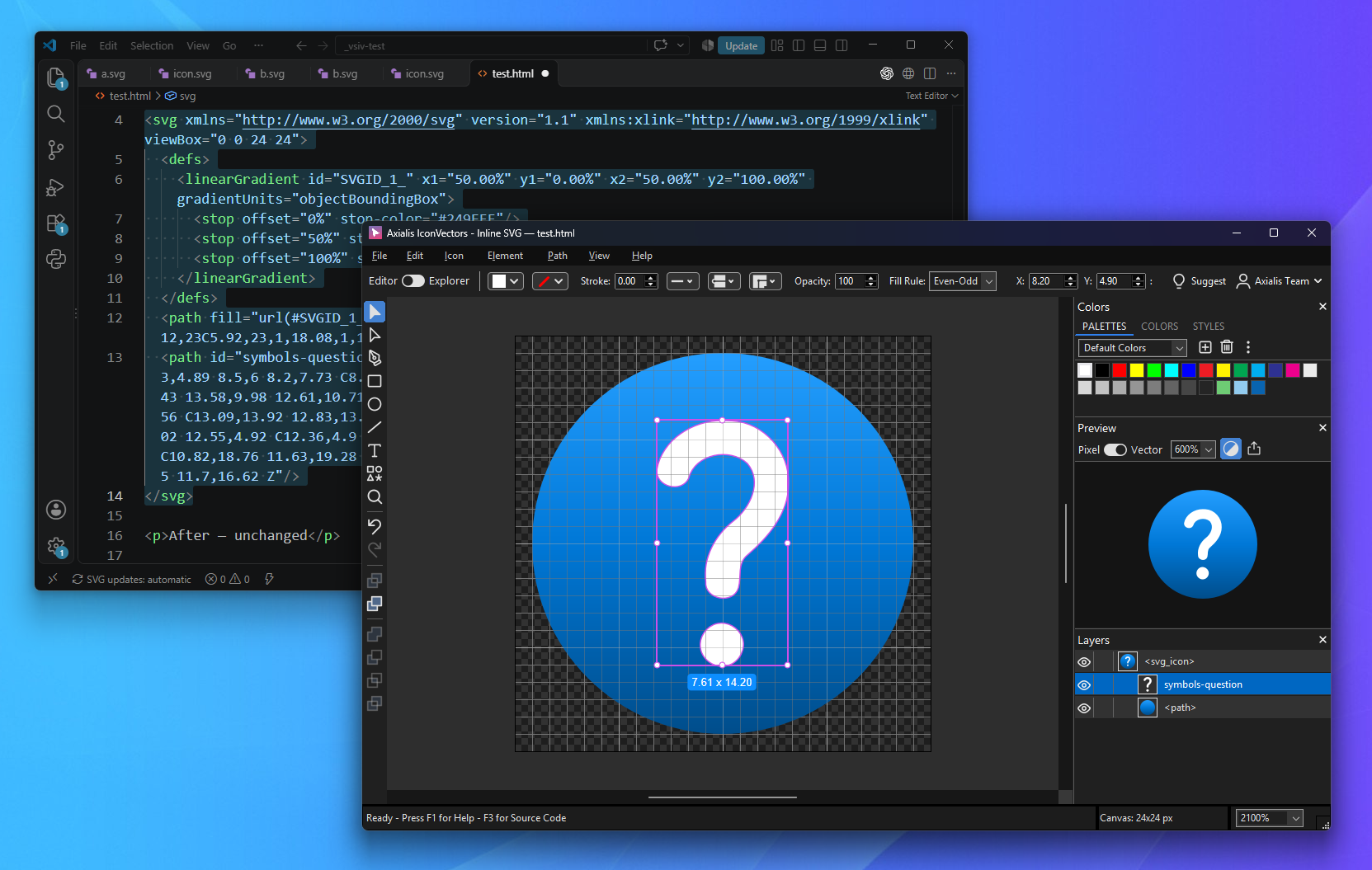
The SVG Editor — Axialis IconVectors extension opens artwork in the desktop editor from three places in your project:
- Directly from an SVG file. Open an asset, make visual changes and save back to its file.
- From a static reference. Follow a supported local SVG reference in your code to edit the referenced asset.
- From inline SVG. Open a self-contained SVG block in a source file, adjust it visually and press Ctrl+S to update that block in the VS Code buffer.
Inline updates preserve the surrounding source, support VS Code Undo and stop when conflicting edits need attention. Review is optional. Save the host file in VS Code when you want to write its updated buffer to disk.
Install the bundled companion during Windows setup or from File > Install Visual Studio Code Extension.... The integration works in trusted local desktop workspaces. The VS Code integration guide explains setup and each editing route.
Reuse a look with Styles libraries
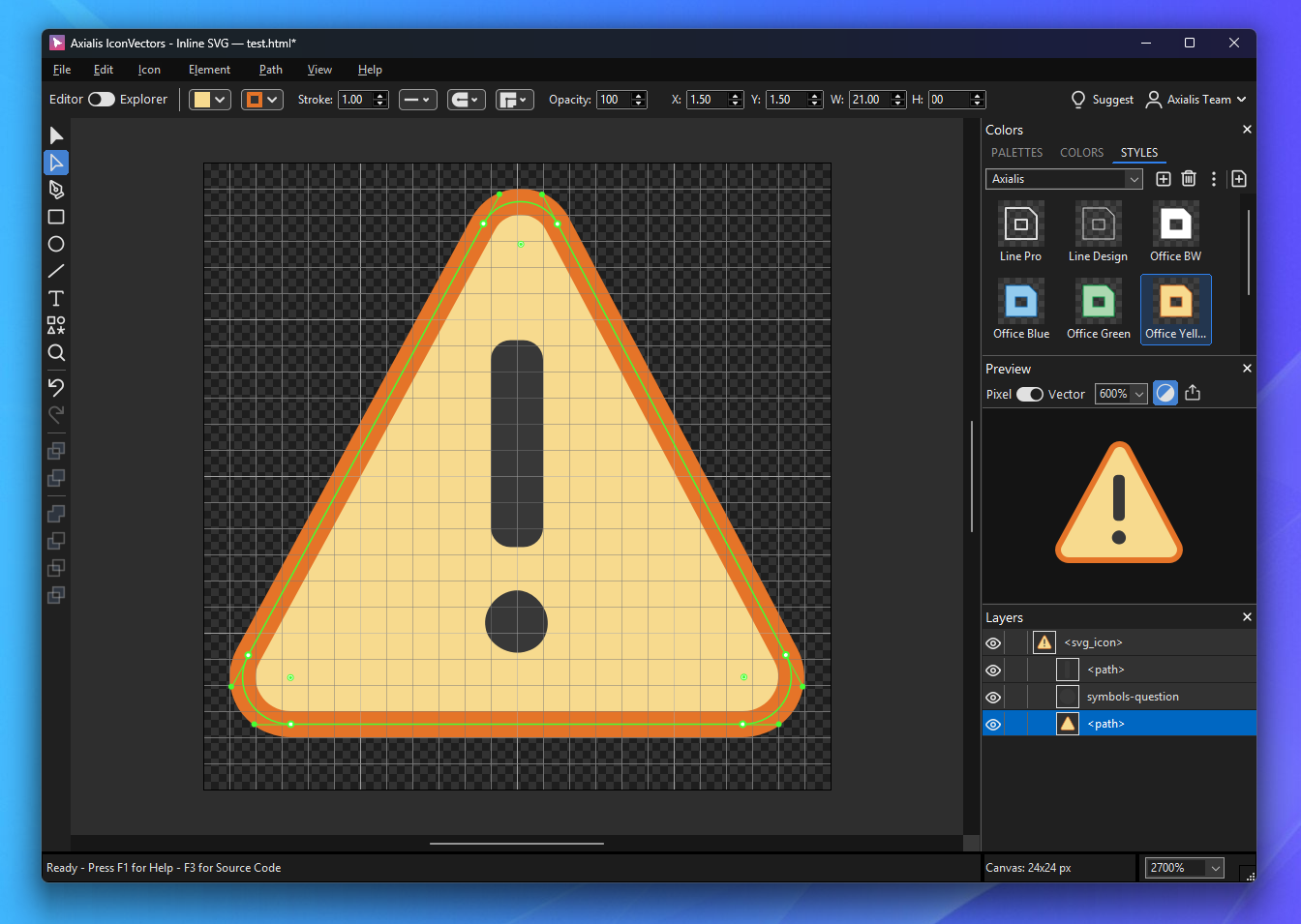
The new STYLES tab captures a complete appearance: fills, gradients, stroke colors and widths, caps, joins, dashes and opacity. Apply a preset to selected artwork, or choose it with nothing selected to set the appearance of new drawing.
Organize presets in .axstyle libraries, edit their properties and share the files with your team. The supplied Axialis and My Styles libraries provide starting points, with My Styles selected on the first 2.20 launch. Library presets are snapshots; applying one does not create a live link between separate icon files.
Keep shared styles inside the SVG
Embed Styles in Icon... collects repeated appearances into shared CSS classes. The Styles panel then offers Libraries and This Icon views, so reusable presets and the current SVG's definitions each have their place.
When you change an element's appearance, IconVectors maintains its embedded style automatically. Edit a shared definition to update its users together, or remove the embedded styles while preserving the artwork's appearance. See working with embedded styles.
Apply a style to a whole icon set
Apply Style becomes the fifteenth Explorer batch command. Choose a library preset, target all artwork or particular SVG IDs, and apply the complete style, only Fill or only Stroke. Review the preview before modifying originals or writing copies. This extends the existing color, geometry, export and optimization batches with a shared visual preset.
Automate file preparation and live editing
The independent CLI checks SVG files, exports PNG and ICO assets, optimizes markup and applies styles, palettes, gradients, versions and geometry changes. File and folder inputs, dry-run plans, exit codes and JSON reports make it usable from build scripts and local agents.
The live Editor's MCP server now exposes 170 tools, including reusable Styles commands. Choose Small (40), Medium (80) or Full (170) to suit your client. The new Junie setup guide covers the connection and profile choice.
Repair SVG source and move through artwork faster
When an SVG cannot open, inspect its source with syntax highlighting and marked error locations. Edit with live checking, apply suggested corrections and open the repaired icon when the code is ready. Optional strict SVG checks also catch issues beyond XML syntax without blocking batch jobs.
Explorer favorites and Previous/Next buttons shorten folder reviews. Save All works across open windows, Revert to Saved reloads a file after confirmation, and external-change protection helps preserve edits from other applications. Per-icon responsive output and Connect Selected Points add control over the final SVG and its paths.
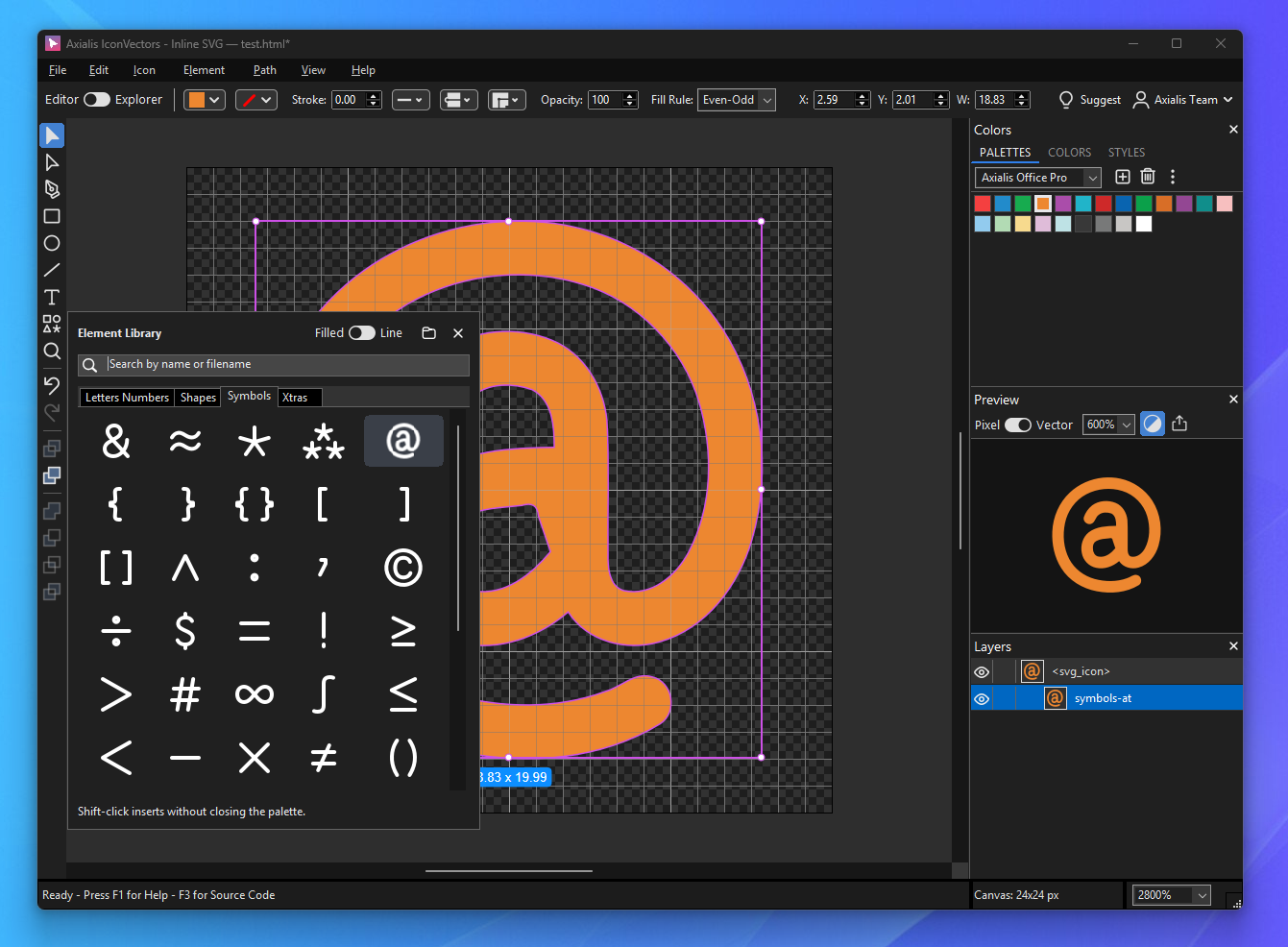
These additions work alongside the existing Element Library: insert a symbol, refine its geometry and apply a style. The library and its search feature remain part of the established editing workflow.
Learn more
- Styles libraries, embedded definitions and batch application
- CLI commands, dry runs and JSON reports
- Connect IconVectors to Junie
- The complete version 2.20 changelog
Try IconVectors 2.20 for Windows
Download the 30-day trial and try visual SVG editing from VS Code, reusable styles and command-line preparation on your own project. The macOS and Linux downloads remain at version 2.10.
Download IconVectors