

IconVectors 2.30 for Windows adds SVG sprite editing
by the Axialis Engineering teamA single SVG file can hold the search, settings and navigation icons for an entire interface. In IconVectors 2.30 for Windows, open that sprite, pick an icon from the strip below the canvas and edit it. Switch to the next icon when you like. One save writes the whole set, and Undo follows your edits across icons.
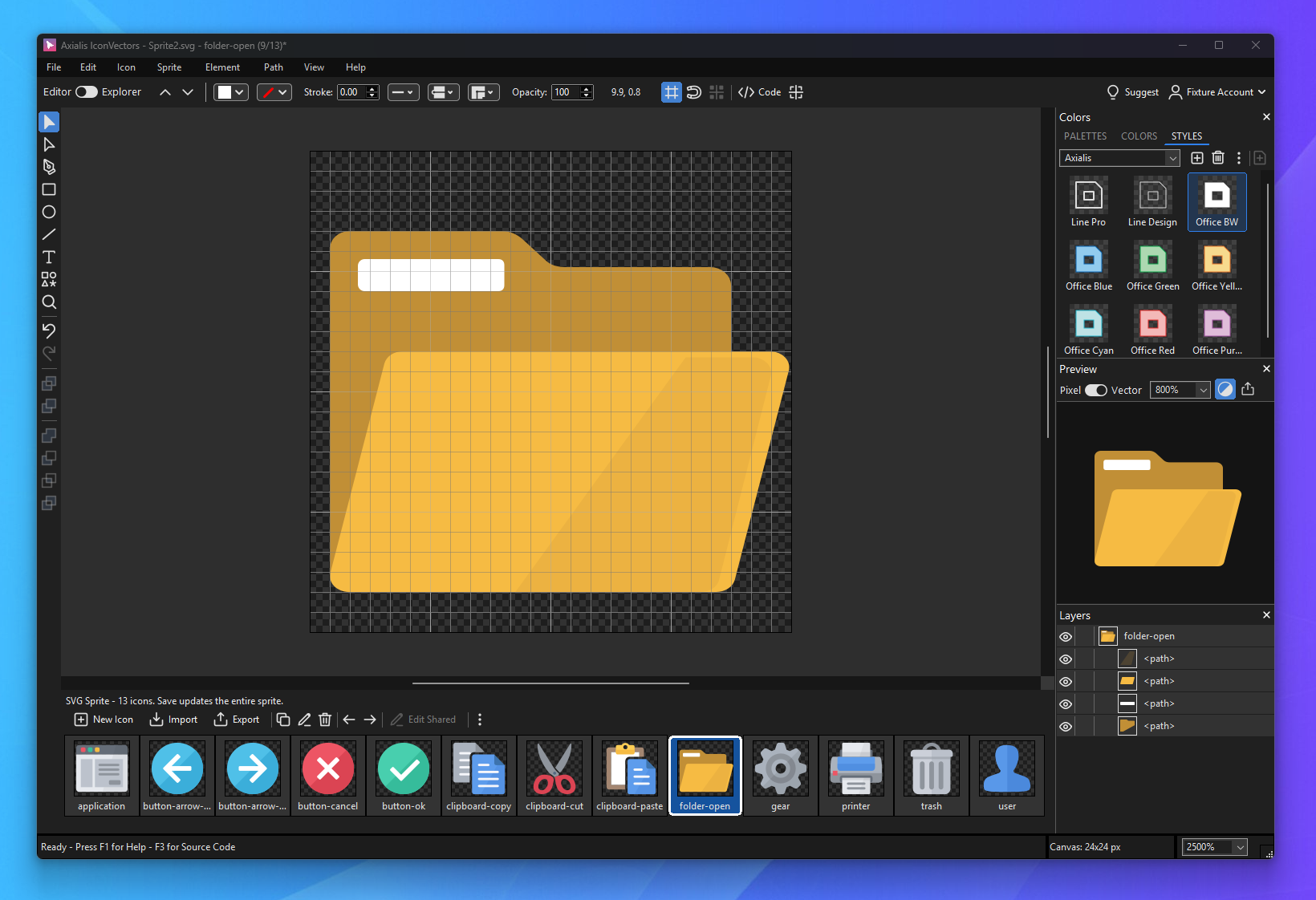
Build a sprite from the icons you already have
In Icon Explorer, select two or more SVG files and choose Create SVG Sprite. The new file opens with an entry for each icon. Back in the folder, its thumbnail shows up to four icons and the caption gives the total. To start with an empty set, choose File > New Sprite and set the default icon size and starting count.
Edit a shared symbol once
A checkmark can be defined once in a sprite and reused in several badges. To adjust just one badge, edit that icon. To change the checkmark in every badge that uses it, select its definition and choose Edit Shared Symbol. IconVectors shows which icons will change before you begin. See how shared symbols work.
Bring an older sheet into a symbol-based workflow
If your website selects icons with CSS background-position, open the original SVG with File > Open Legacy SVG Sprite and set the tile size. A 96 × 24 strip, for example, gives four 24 × 24 icons. Choose Save As to write a symbol-based sprite to a new file and keep the original for pages that still use those CSS positions.
Press F3 to compare the complete SVG Sprite source with the selected icon's code. Choose Export Icons when a project needs one standalone SVG or PNG, or a separate file for each icon. SVG exports keep each icon's own viewBox and use your SVG Code formatting settings.
Work with sprites through MCP
An AI coding assistant connected through MCP can create a sprite from your Explorer selection, trace a bitmap into an editable icon and export it. The Full profile in Windows 2.30 contains 175 tools. Explore the sprite and tracing tools.
Turn a flat-color bitmap into editable paths
Choose File > Place & Trace Bitmap for a logo or icon. Compare the original and the trace side by side, adjust the palette, and use noise reduction to avoid following small color variations. Place the paths separately or as a named group in the current icon. Auto mode also recognizes monochrome artwork. Read the bitmap tracing guide.
Open project artwork from Visual Studio
In Visual Studio 2022 or 2026 on Windows, right-click a saved SVG or sprite in Solution Explorer or on its editor tab, then choose Edit in IconVectors. Install the extension during Windows setup or from the IconVectors File menu. Install the Visual Studio extension.
Connect OpenCode to the editor
The new OpenCode setup guide shows how to register IconVectors with the AI coding assistant. Try the supplied project configuration, open an SVG and ask OpenCode for its canvas size to check the connection.
This release also includes bug fixes. Read the full Windows 2.30 release notes.
Try IconVectors 2.30 for Windows
Choose a 64-bit or 32-bit Windows installer for the 30-day trial. The current macOS and Linux downloads are version 2.20.
Download IconVectors