


A slightly wrong curve or stroke is easier to fix visually than by changing path coordinates in a code editor. The SVG Editor — Axialis IconVectors extension opens the artwork from VS Code, then returns your edits to the right file or inline source block.
This guide uses IconVectors 2.20 for Windows and desktop Visual Studio Code 1.101 or later, installed on the same computer. Open a trusted local project folder. The companion works without an AI client or MCP setup.
1 - Install the bundled extension
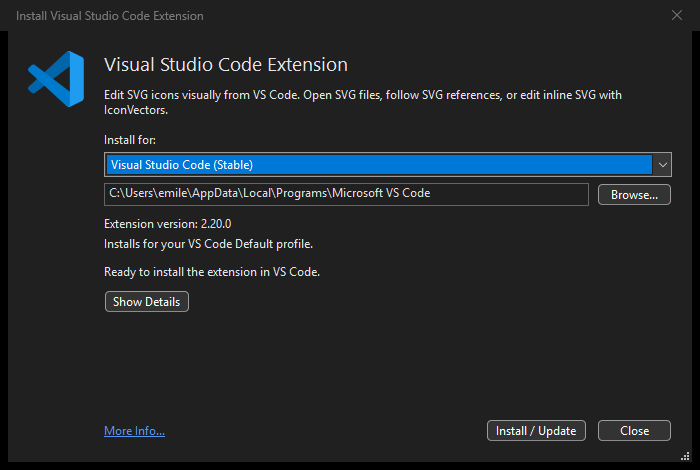
- In IconVectors, choose File > Install Visual Studio Code Extension....
- Select your VS Code installation, then choose Install / Update. Use Browse... for a custom installation folder.
- In VS Code, check the Extensions view for SVG Editor — Axialis IconVectors, version 2.20.0. Follow any reload prompt.
- If the application cannot be found, press Ctrl+Shift+P, run IconVectors: Set Up Application..., and select the desktop
IconVectors.exe.
Run IconVectors under your normal Windows account. Automatic installation targets that user's Default VS Code profile. For another profile or portable VS Code, select the intended profile first, then use Extensions > ... > Install from VSIX.... In IconVectors' installation dialog, Show Details > Show Package Folder reveals the bundled iconvectors-vscode.vsix.
You can also select the VS Code option during Windows setup. After a later IconVectors update, use the File command again to update the companion in the profiles where you use it. The installation guide covers the remaining setup choices.
2 - Choose where the SVG lives
| Your source | VS Code command | Saving updates |
|---|---|---|
A standalone .svg file | Edit SVG in IconVectors | The SVG file on disk |
| A local SVG reference in code | Edit Referenced SVG in IconVectors | The referenced SVG file |
A static <svg> block inside a file | Edit Inline SVG in IconVectors | The tracked block in the VS Code buffer |
3 - Edit a standalone SVG file
Right-click an SVG in VS Code's Explorer and choose Edit SVG in IconVectors. The same action is available from the SVG editor's title area and the Command Palette.
Save any unsaved VS Code edits first. If prompted, Save and Open writes those edits before opening the artwork. In IconVectors, adjust the shape, colors or stroke, then press Ctrl+S. This saves the actual SVG file; VS Code handles the changed disk file normally.
Ordinary file saves are not imported as VS Code Undo steps. If both applications have unsaved edits to that file, resolve their normal reload or compare prompts before continuing.
4 - Follow an icon reference from HTML or CSS
Suppose your project contains icons/search.svg, referenced from a page like this:
<img src="./icons/search.svg" alt="Search">Place the cursor on the reference, right-click, and choose Edit Referenced SVG in IconVectors. Edit and save in IconVectors. The asset changes; the HTML reference stays as written.
The command also understands local CSS url(...) values and supported static JavaScript/TypeScript asset imports. A query string or fragment is ignored for the file lookup. If several candidates are possible, choose the intended asset. Remote URLs, bundler aliases and dynamic expressions are not evaluated to guess a file.
5 - Edit an inline SVG without touching surrounding code
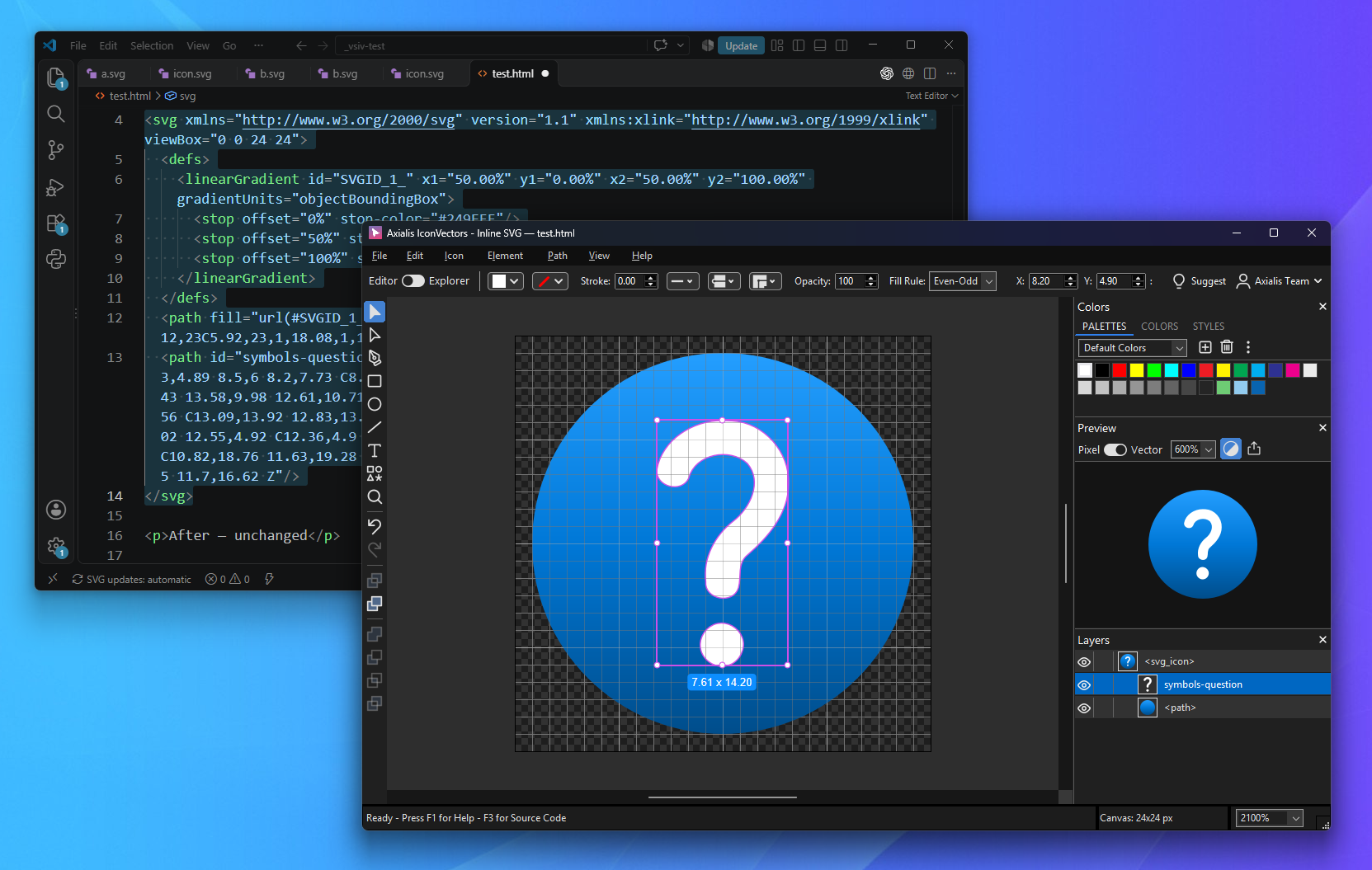
For an inline icon, save the host document with a filename, such as toolbar.html. Its current buffer can still contain unsaved edits. Try this self-contained block:
<button type="button" aria-label="Search">
  <svg xmlns="http://www.w3.org/2000/svg" viewBox="0 0 24 24"
       width="24" height="24" aria-hidden="true">
    <g fill="none" stroke="currentColor" stroke-width="2"
       stroke-linecap="round">
      <circle cx="10" cy="10" r="6"/>
      <path d="M14.5 14.5 21 21"/>
    </g>
  </svg>
</button>- Select the entire
<svg>...</svg>block, or place the cursor inside it. Run Edit Inline SVG in IconVectors. - Edit in the new IconVectors window. Its title identifies the host file, so you can distinguish it from standalone icons.
- Press Ctrl+S, or use Update Inline SVG in toolbar.html. After the saved result passes validation, the extension updates only the tracked SVG block in VS Code.
- Save
toolbar.htmlnormally in VS Code. Its usual Auto Save setting can also save the changed buffer.
The button and neighboring code remain outside the update. IconVectors may reformat the SVG itself. Updates happen when you save in the native editor, rather than continuously while you draw. Each distinct accepted inline update is one VS Code Undo step.
6 - Use Undo or turn on review when you need it
Automatic inline updates are enabled by default. For a diff before each accepted result, open VS Code's User Settings, search for iconvectors.reviewInlineChanges, and enable Review inline changes before applying. Then use Review Inline Result... followed by Apply Reviewed Inline Result.... A newer saved result needs a fresh review.
Editing inside the tracked source block, making an ambiguous boundary change, or undoing an imported update with Ctrl+Z pauses synchronization. This prevents the next native save from overwriting newer source or restoring an edit you just undid. Compare your current source with the retained artwork, then follow the explicit recovery or restart choice. Refresh Inline Result... rereads a saved result; it does not clear a conflict.
7 - Finish one icon and keep the project moving
Close the inline IconVectors window when done, resolving its normal unsaved-work prompt. A confirmed close ends that block's active association. You can edit several blocks in separate windows; closing one leaves the others working. Any unaccepted or uncertain artwork is retained for recovery rather than silently applied.
Use self-contained static SVG in this workflow. Keep required styles and gradients inside the block; see managing embedded SVG styles. JSX/TSX expressions, framework bindings, remote/WSL workspaces and browser-based VS Code are outside this handoff.
For a folder of assets, Open Folder in IconVectors takes you to the built-in Explorer; New SVG Icon Here... creates an asset in the chosen folder. Keep visual edits in the editor, source review in VS Code, and repeatable file checks in the CLI.
Related guides
- Build consistent icons with reusable Styles libraries
- Manage styles embedded inside an SVG
- Automate icon checks and exports with the CLI
- VS Code session recovery and troubleshooting
Start Making SVG Icons Today with IconVectors
Download the fully-functional 30‑Day Free Trial and unlock your icon design workflow.
Windows 2.20 (November 4, 2026). macOS 2.10 and Linux 2.10 are also available.