

IconVectors 2.20 for macOS: VS Code, Styles and CLI
IconVectors 2.20 is now available for macOS, bringing visual SVG editing from VS Code, reusable Styles and command-line automation to the Mac. The universal download includes Intel and Apple Silicon builds and supports macOS 10.15 or later.
The release brings the features introduced in version 2.20 for Windows to your Mac workflow, including embedded SVG styles, source repair and 170 MCP tools. Windows and macOS are now at 2.20; Linux remains available at 2.10.
Build a consistent icon family with Styles
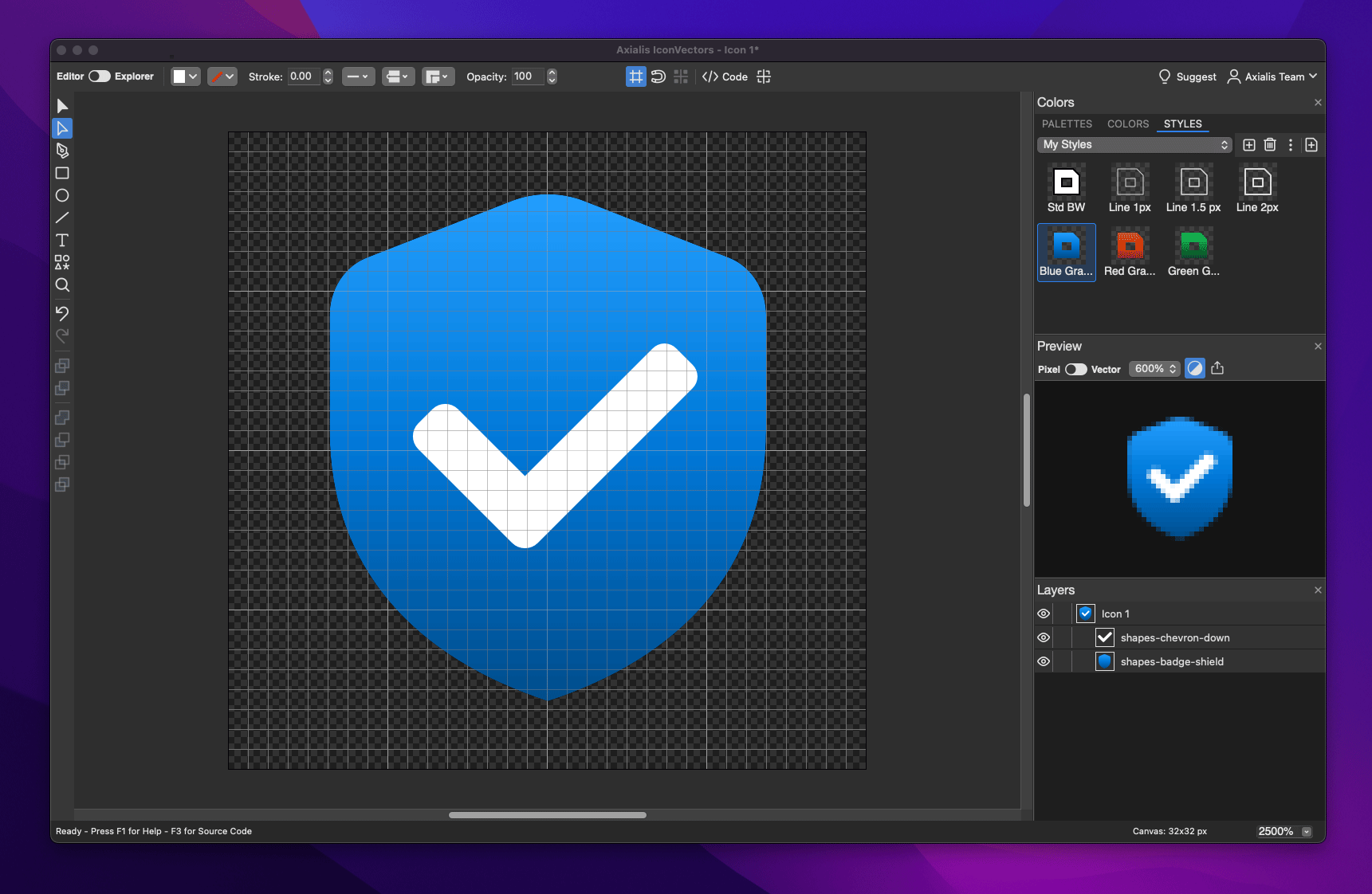
The new STYLES tab stores a complete appearance: fills, gradients, stroke colors and widths, caps, joins, dashes and opacity. Apply a preset to selected artwork, or select one with nothing selected to set the appearance of new drawing. Organize and share presets in .axstyle libraries, starting with the supplied Axialis and My Styles collections.
Use Embed Styles in Icon... to collect repeated appearances into CSS classes inside the SVG. The panel adds a This Icon view beside Libraries. IconVectors manages those definitions as you change artwork, so each element refers to its style without accumulating local overrides. Edit a shared definition to update its users together, or remove embedded styles while preserving the appearance.
The new Apply Style batch command brings the Explorer total to 15 commands. Apply a library preset to a folder of icons, target all artwork or specific SVG IDs, and preview the result before modifying originals or writing copies.
Edit SVGs from Visual Studio Code
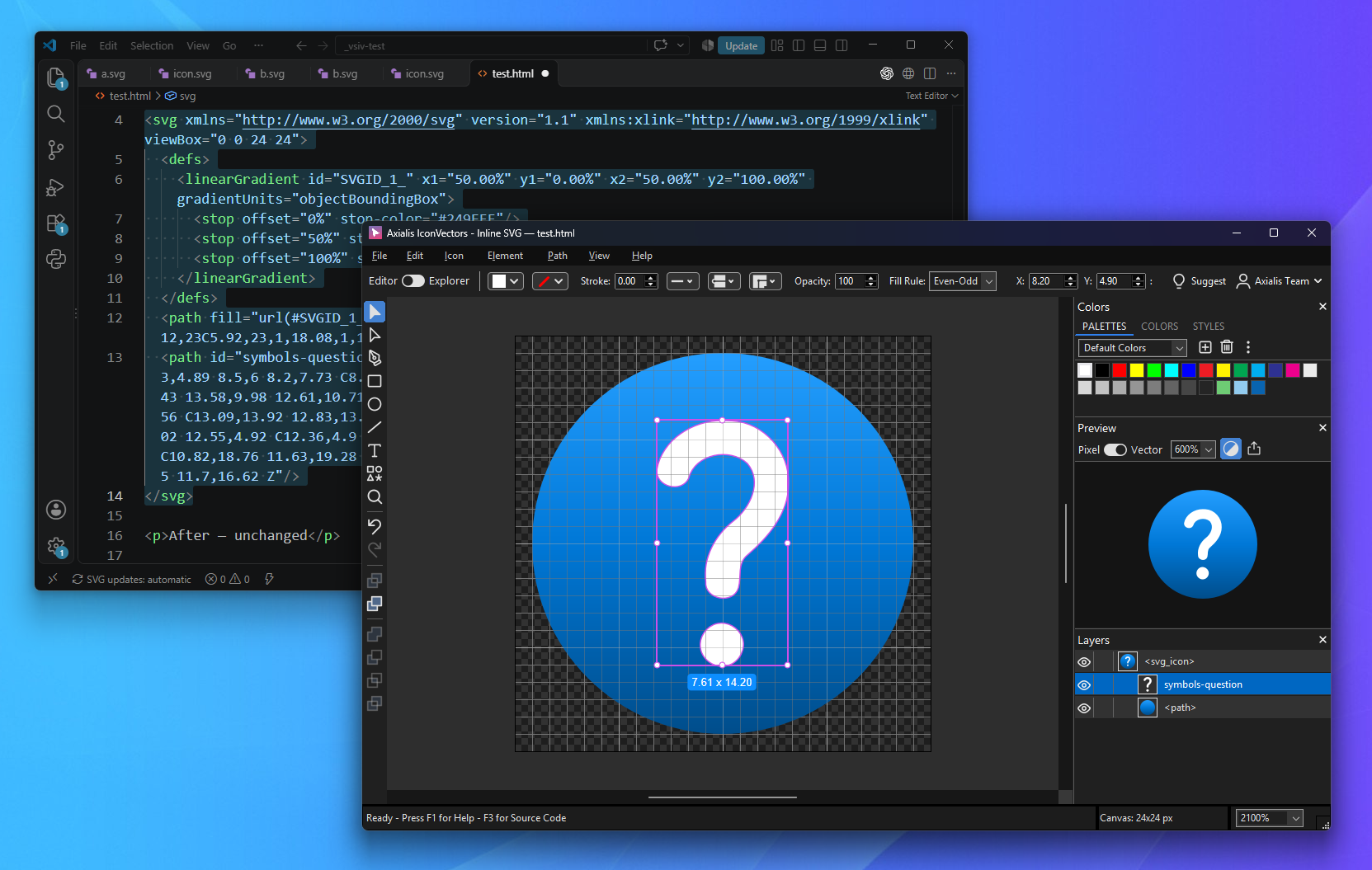
Keep your project open in VS Code while using IconVectors to make visual changes. The SVG Editor — Axialis IconVectors companion supports three editing routes:
- SVG files: open an asset in IconVectors and save changes back to its file.
- Local references: follow a supported static SVG reference in your source to edit the referenced file.
- Inline SVG: edit a self-contained SVG block visually, then press Command+S in IconVectors to update that block in the VS Code buffer.
Inline updates preserve the surrounding code, support VS Code Undo and pause if conflicting edits need attention. Review is optional. Save the host document in VS Code to write its updated buffer to disk.
Choose File > Install Visual Studio Code Extension... in IconVectors to install the bundled companion. The VS Code integration guide covers setup and application discovery, including custom app locations. The companion requires desktop VS Code 1.101 or later; that VS Code version needs macOS 11 or later, while IconVectors itself continues to support macOS 10.15.
Automate SVG work from the command line
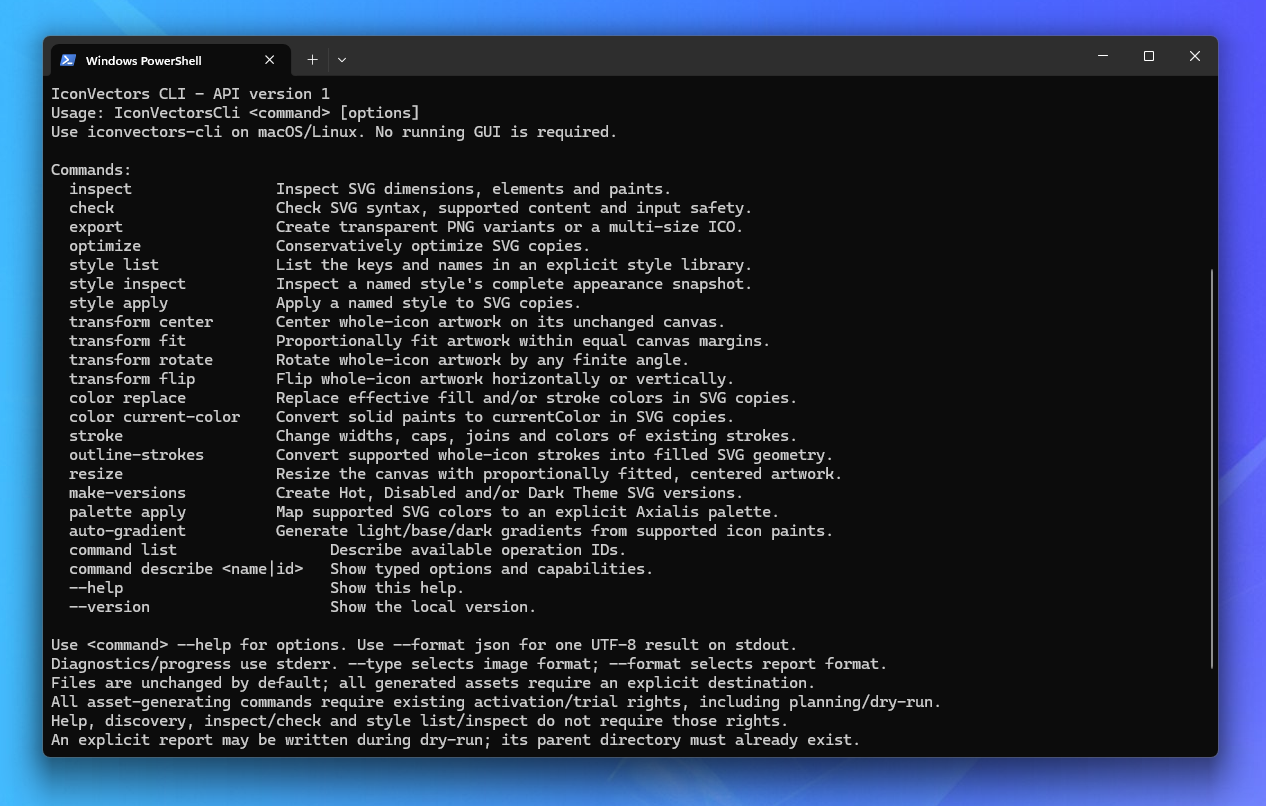
The independent command-line interface (CLI) gives developers and local agents 19 operations without starting the graphical editor or connecting to MCP. Inspect SVGs, check supported syntax, export transparent PNGs and multi-size ICOs, optimize markup, apply styles and palettes, or prepare icon versions and geometry changes.
Process individual files or folders from Terminal, an IDE task or a build script. Review a dry-run plan before generating assets, and use JSON reports and exit codes to handle results automatically. Asset generation, including its dry runs, uses your existing valid IconVectors license or trial.
The native macOS executable is /Applications/IconVectors.app/Contents/Helpers/iconvectors-cli. It provides the same command set as the Windows program shown below; the Terminal quick start shows the exact launch commands and quoted paths.
Control the live Editor through MCP
For live editing through an assistant, the native MCP companion connects a local client to the running IconVectors app. Choose Small (40 tools), Medium (80) or Full (170). The release includes a native Claude Desktop .mcpb bundle alongside the companion. Follow the macOS MCP setup guide for native paths and your client's configuration.
Repair SVG source and review icon sets faster
If a file cannot open, inspect its highlighted source and marked error location, edit with live checking, and apply suggested corrections. Open the repaired icon when it is ready. Optional strict SVG checking catches issues beyond XML syntax without stopping batch processing.
Explorer favorites and Previous/Next buttons make folder reviews quicker. Save All reaches modified documents across open windows, while Revert to Saved and external-change protection help manage files shared with other tools. Per-icon responsive output, connected path endpoints and zero-radius corner editing give you more control over the SVG you save.
Learn more
- Styles libraries and embedded SVG definitions
- Start the native CLI from Terminal
- Tutorial: edit SVG files, references and inline code from VS Code
- The complete version 2.20 changelog
Try IconVectors 2.20 on your Mac
Already using 2.10? Choose Help > Check for Updates to get the new release through the built-in updater. New users can download the universal DMG and start the 30-day trial.
Download IconVectors for macOS