Working with The Icon Explorer

The Icon Explorer is a central workspace for browsing the SVG files directly inside a local folder. It keeps the current Editor document open while you browse and can display large folders as a virtualized thumbnail grid.

The first control at the far left of the Control Bar is the segmented Editor/Explorer workspace switch, followed immediately by a separator. It uses the same segmented appearance and interaction as the Pixel/Vector switch in Preview. The active segment stays selected and follows the same workspace state as F4, F5, Ctrl+Tab, and the View menu. Switching workspaces does not close the current Editor document or discard the Explorer folder and selection state. The optional Editor selection information is never shown in Explorer.
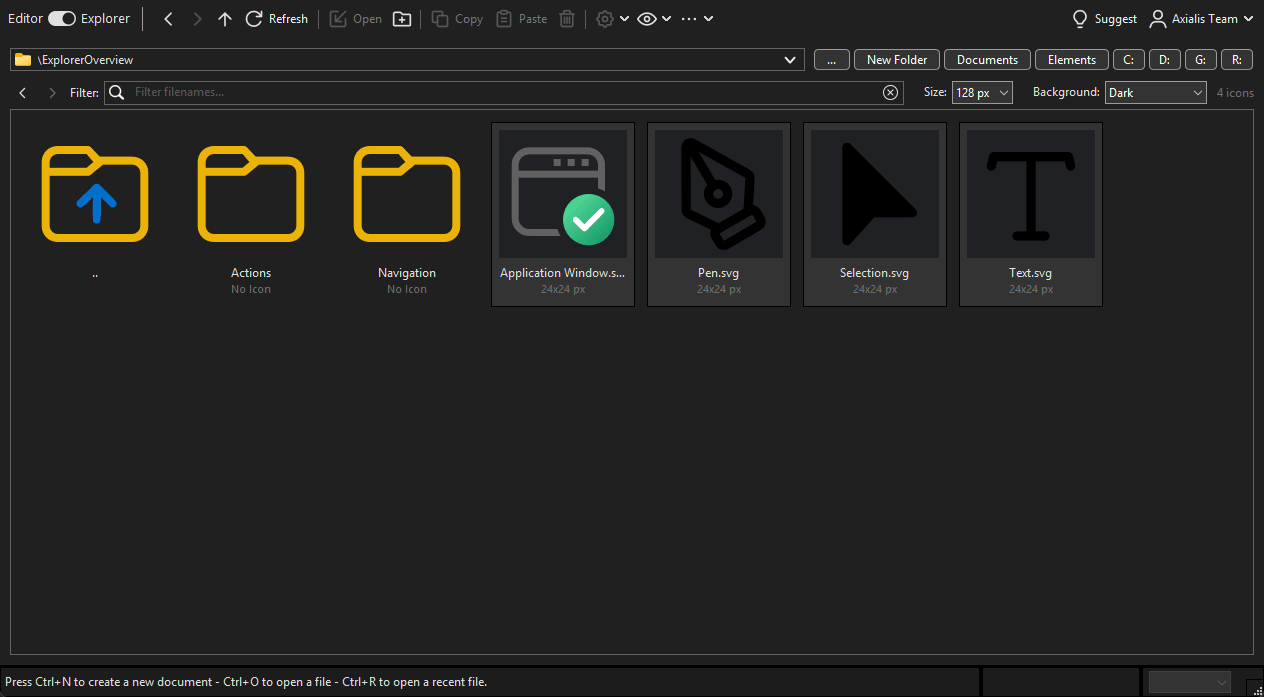
Icon Explorer showing its reactive Control Bar, folder path, navigation controls, folders, and SVG icons

The Explorer Control Bar adapts to the available width. Its primary commands remain on one row, while less frequently used commands move into More when space is limited. The Documents and Elements shortcuts open their standard folders, available drive buttons change the active drive, and Up opens the current folder’s parent.

Opening a folder

Choose File ‣ Open Folder… (Ctrl+Shift+O), or switch to View ‣ Explorer (F5) and choose the browse button. Select a local folder. IconVectors scans the SVG files and lists direct child folders in that folder; it does not scan inside those child folders.

The editable folder address shows the complete current path. Typing or pasting does not change the folder until you press Enter; Escape restores the active path. An invalid address leaves the current folder and thumbnails unchanged so you can correct the text. The chevron at the right of the address opens Recent Folders, a newest-first list of up to 20 successfully opened explicit roots. A root enters this list only when accepted from the address field, the browse button, File ‣ Open Folder…, or the equivalent MCP open-folder command. Choosing an existing recent item may promote it. Navigating to a child or parent, using Back or Forward, restoring Explorer at startup, refreshing, or reconciling watcher changes does not add or promote a recent entry. Equivalent path spellings appear only once, and the list persists between sessions. If selecting a recent item confirms that the folder itself is definitively gone, IconVectors shows the normal open error and then removes and saves that entry immediately. Access-denied folders, transient network failures, unavailable mapped or removable drives, and cancelled, busy, stale, or superseded navigation remain recorded. The failed open never replaces the accepted folder or changes its grid, history, or watcher.

The first time a new profile enters Explorer, IconVectors creates and opens IconVectors Icons inside the operating system’s Documents folder. On later starts it restores the newest available recent folder, trying older entries before falling back to that Documents folder.

While Explorer is active, the main-window title shows only the selected folder’s name, for example Axialis IconVectors - Folder "My Icons". A filesystem root is shown using its meaningful root label. The full folder path, filter, and selected filename are not placed in the title.

The compact Explorer header contains the editable address, a New Folder button immediately to the left of the unchanged browse button, compact available-drive buttons on Windows, SVG-only Back and Forward buttons immediately before Filter, the Size and Background controls, and authoritative icon and selection counts. All controls remain on one row.

Filenames appear progressively while the scan is running. A conditional status row reports scanning or cancellation and offers Cancel only while it applies; it disappears after an ordinary successful scan. Each visible tile first shows Loading thumbnail, then the rendered SVG preview. An invalid, missing, changed, oversized, or unsupported SVG shows Thumbnail unavailable without stopping the folder scan. The status row reports a bounded count of unavailable previews.

Note

Thumbnail generation deliberately does not load SVG image elements or external bitmap resources. Such files show the unavailable placeholder in this milestone.

Creating a folder

Choose New Folder in the header or New Folder… in an Explorer context menu. The context command always creates inside the currently open Explorer folder, even when you right-click a child folder or SVG file. Enter one direct child name in the themed dialog; Enter accepts and Escape cancels. The name field initially has focus so an offered default name can be replaced immediately.

Names may contain Unicode characters and spaces. IconVectors rejects an empty name, . or .., separators or a nested/absolute path, invalid Windows filename characters, trailing dots or spaces, reserved device names, and a name already used by a file or folder. A precise validation error leaves the dialog open for correction. Cancel creates nothing.

After creating the direct child, Explorer remains in the accepted parent folder. It clears the current filter so the child is visible, refreshes the parent, and selects, activates, and reveals only the new folder. The created child is promoted in Recent Folders, but this operation does not append or move the navigation history. If creation itself fails, Explorer state remains unchanged. If a refresh cannot start immediately, IconVectors may retry it once; it never deletes an already-created child or reports the physical creation as failed merely because the refresh was delayed.

Changing folders inside Explorer

When the current folder has a navigable parent, the first grid entry is .. with the dedicated yellow-folder and blue-arrow image supplied for that entry. Its colors do not change with the application theme. It is drawn at the same size as the normal folder image, which remains unchanged for direct child folders. Direct child folders follow in canonical name order. SVG files appear after the folders in the existing file order. A filesystem root has no .. entry. From a direct child of a Windows drive root, including a folder with a Unicode name, .. opens the absolute drive root rather than a drive-relative path.

Folders and .. use the normal blank Explorer background rather than an SVG preview card. They have no preview frame, checkerboard or loading/failure thumbnail graphic, and submit no thumbnail rendering work. Their normal folder resource and label remain aligned to the current grid layout. Hover and focus follow the active theme, and selecting a folder keeps the full-tile blue selection background.

Double-click a folder or .. to open it. You can also make it the active or accessibility-focused entry and press Enter, invoke its accessibility default action, or choose Open Folder from the context menu. Folder entries are navigation targets rather than SVG selections: they are never copied, previewed as SVG, rendered as thumbnails, or included in an SVG batch operation. One direct-child folder can be renamed, and a confirmed empty direct-child folder can be deleted, as described below.

Folder navigation uses the same guarded adoption as the address and recent folder routes. The address, title, history, and folder watcher change only after the destination is accepted. An inaccessible or otherwise invalid destination reports the failure and leaves the accepted folder and grid unchanged. Navigation remains non-recursive, including through filesystem links and aliases.

Switching Windows drives

On Windows, compact buttons for the currently available logical-drive letters appear in drive-letter order immediately to the right of the browse button. IconVectors refreshes the set when Explorer is created, whenever you enter or re-enter the Explorer workspace, and when you use Explorer Refresh; it does not poll for drive changes. The header remains one row even when several drives are available. If the drive set is unusually large, the buttons remain in a single horizontally scrollable area while the folder path stays usable; use the mouse wheel over the buttons or Left, Right, Home, and End while a drive button has focus to reach buttons outside the visible area.

Selecting a drive returns to the latest folder successfully visited on that drive, including after restarting IconVectors. Drive identities are stored as canonical uppercase drive-letter keys. A drive that has no remembered folder opens at its root. IconVectors loads this bounded versioned setting without testing whether the recorded drive or folder is currently available. If a remembered folder is no longer available when selected, IconVectors retries the drive root without replacing the accepted Explorer folder with an intermediate failure. A successful fallback remembers the root for later sessions.

Drive shortcuts use the same guarded navigation and Back/Forward history as other Explorer folder routes. They do not promote Recent Folders. Failed or cancelled attempts, including stale or superseded requests, do not change the accepted folder, history position, watcher, or remembered per-drive folder. If the requested folder is already the current canonical folder, selecting its drive is a no-op and does not add a duplicate history entry. Only a successfully accepted destination updates the persisted per-drive folder.

Going Back and Forward

Use the Back and Forward buttons in the Explorer header, the matching Explorer menu commands, or the first two commands in the grid context menu. The buttons contain arrow images only; their tooltips and accessibility names identify them. No new keyboard accelerator is assigned in version 2.00.

Back/Forward history is separate from Recent Folders. It records every accepted folder visit, whether the folder came from an explicit root action, a recent item, a child folder, .., or the equivalent MCP command. Refresh and watcher reconciliation do not add visits. Consecutive equivalent paths and same-folder navigation do not create duplicate visits, while a real non-consecutive revisit is retained. Navigating normally after Back removes the abandoned Forward branch. Back and Forward move through the existing entries without appending new ones.

The history and current position persist between sessions, with at most 100 entries. Explorer still chooses its initial folder from the newest valid explicit Recent Folder or the existing default fallback when first activated. After that folder is accepted, IconVectors aligns it with the latest matching history entry or appends it once; startup does not promote Recent Folders. If a historical destination is unavailable, the normal folder error is reported and both the accepted folder and history position remain unchanged. Unavailable history entries remain recorded.

Refreshing a folder

While Explorer is active, choose Explorer ‣ Refresh or press Ctrl+R to rescan the active folder explicitly. IconVectors also monitors the current direct folder: external additions, modifications, renames, and removals are coalesced and reconciled automatically without requiring Refresh. Monitoring is non-recursive and is rebound when the active folder changes. If monitoring is unavailable, manual Refresh remains usable.

The current grid remains available while the refresh is prepared. A successful refresh adds new SVG files, updates changed files, and removes files that no longer exist. It preserves the current filter and display settings, retains selection and scroll targets that still exist, and reuses compatible cached thumbnails. A refresh that is cancelled or fails leaves the last accepted grid and interaction state intact. Starting another refresh supersedes the one in progress.

A file renamed outside IconVectors appears automatically as one removed file and one new file. Use the Explorer Rename command when you want the selection and active tile to follow the new filename.

Browsing large folders

The grid creates no window for each file. It lays out the full item count but renders and prepares only the visible tiles and a bounded nearby range. This keeps scrolling responsive for folders containing thousands of direct SVG files.

Scroll normally, resize the window, or use the controls above the grid:

  • Size offers 64, 96, 128, 192, and 256 logical-pixel choices.

  • Background offers Light, Dark, Checkerboard, and Borderless previews.

Changing either control replaces incompatible pending work. Returning to a recently viewed range can reuse compatible previews from the bounded in-memory cache. Explorer settings and folder state remain in memory when you switch to Editor and back. The recent-folder list is persisted across application launches; thumbnail cache and interaction state are not.

An SVG tile shows its logical canvas dimensions below the filename. Its tooltip combines the filename, dimensions, scan-time modification time, and file size. A direct-child folder shows the number of SVG files directly inside it as No Icon, 1 Icon, or N Icons. Folder counts are non-recursive and are prepared after visible and nearby SVG thumbnails so that browsing remains responsive.

Checkerboard follows the effective application theme: it uses the existing light checkerboard in the light UI and a subtle two-tone dark checkerboard in the dark UI. Borderless preserves SVG transparency while allowing the unselected tile, preview, filename, and dimensions to blend into the effective Explorer theme background. Light and Dark preview choices do not change with the application theme. Theme changes use the application’s normal restart workflow.

Filtering entries

Type in Filter to show matching direct child folders and SVG filenames in the current folder. Matching is a literal substring of the complete displayed folder or filename, including the .svg extension for files. On Windows, matching uses invariant Unicode case-insensitive comparison. On Linux and macOS, native filename bytes use ASCII A-to-Z case folding only; non-ASCII case variants remain distinct. No platform performs Unicode normalization. Spaces are significant; the filter does not interpret wildcards, regular expressions, or search tokens. The valid .. entry always remains visible. Filtering uses entries already accepted by the current scan and does not rescan the folder or render thumbnails merely because the filter changed.

Selected files that do not match remain selected but hidden. The header count shows visible versus total icons while filtering and includes the complete canonical selection count, including hidden selections. Clearing the filter restores the hidden selection highlights.

An empty direct folder says No SVG files in this folder. A filter with no visible result says No filenames match "filter text", preserving the entered filename text between straight ASCII double quotes. The no-folder message is reserved for the exceptional case where neither Documents nor another valid folder can be opened. These states remain inside the focusable virtual grid and do not create item windows.

Selecting and navigating

Click an SVG tile to select it. Clicking a folder makes it the active navigation target without adding it to the SVG file selection. Use Ctrl+Click to toggle an SVG tile, Shift+Click to select a visible range, and Ctrl+Shift+Click to add a visible range. Clicking unused grid space clears the selection.

When the thumbnail grid has keyboard focus:

  • Arrow keys move by one tile or one visual row.

  • Home and End move to the first and last visible tile.

  • Page Up and Page Down move by approximately one viewport.

  • Hold Ctrl while navigating to move the active tile without replacing the selection.

  • Hold Shift while navigating to extend a visible range.

  • Hold Ctrl+Shift while navigating to add the visible range to the existing selection.

  • Ctrl+A selects all currently visible SVG matches; navigation entries are excluded.

  • Space selects the focused SVG tile; Ctrl+Space toggles it. A folder remains an active navigation target without entering the SVG selection. The active tile is used when no virtual tile owns focus.

  • Enter opens the virtually focused folder or SVG file, or the visible active entry when no virtual tile owns focus. Folders navigate in Explorer; SVG files open in Editor.

  • Shift+Enter opens the focused SVG in its own IconVectors window.

  • Escape clears the selection.

  • Shift+F10 opens the same Explorer context menu as a right-click.

Right-clicking an unselected SVG tile selects and activates it before the menu opens. Right-clicking a selected SVG tile preserves the complete multi-selection and makes that tile active. Right-clicking a folder makes it the active navigation target without adding it to the SVG selection. Right-clicking unused grid space preserves the selection. For a folder or .. target, Open Folder is the first and bold default command. For an SVG target, Open Icon is first and bold and opens only the tile under the mouse, even when several SVGs are selected. The target is revalidated before the command runs. Open Icon in a New Window… follows it and uses Shift+Enter; Shift-double-click uses the same route. A separated current-folder group offers New Folder…; on unused grid space it is placed prominently. Back, Forward, and Refresh remain shared navigation commands, while the lower file group keeps Save and Close for the current open SVG, Rename or Batch Rename, Delete, Select All, Copy, Paste, Duplicate, Group in Folder, and Batch Processing with their usual enabled states. Opening the menu does not refresh the folder.

The active tile is kept visible while navigating. Filtering, resizing, changing thumbnail size or background, and switching to Editor and back retain the current Explorer interaction state when it remains applicable. Opening a different folder clears the old selection, active tile, range anchor, and scroll position while retaining the filter and display controls.

Opening folders and system locations

The folder context menu includes Open Folder, Open in a New Window, and Open in Windows Explorer where applicable. Open Folder navigates the current Explorer. Open in a New Window starts another normal IconVectors window at that folder. Open in Windows Explorer delegates to the Windows shell without changing the active IconVectors folder.

Dragging files and folders

You can drag selected SVG files between folders inside Icon Explorer. Dropping on a folder moves files on the same drive and copies them between drives by default. Hold Ctrl to request a copy or Shift to request a move. A drop into the same folder does nothing unless Ctrl requests duplicate copies. The insertion and target indicators show where the drop will occur, and hovering over a folder opens it temporarily so you can continue navigating to a deeper destination.

You can also drag SVG files between Icon Explorer and Windows File Explorer. Files dragged into IconVectors are copied into the active folder or target folder; files dragged out use the normal Windows copy or move semantics. Folders are valid destinations but are not copied or moved by these operations.

Use Group in Folder… to create a direct child folder from the selected SVG files. Copy is the default; select Move icons into this folder only when the source files should be removed. After the transaction commits, Explorer opens the new child through normal child-folder navigation. If navigation fails, the grouped files remain committed and Explorer refreshes the parent to reconcile it. Moving is blocked when the selection contains the document currently open in Editor.

When you drag SVG files onto the Editor, IconVectors imports them as editable groups in one undoable operation. Dropping one SVG into an empty Editor opens it as a document; dropping several lets you choose how to proceed. An unsaved Editor document is protected from a source-file move.

Copying, pasting, and duplicating SVG files

Explorer reuses the standard Edit command routes contextually:

  • Ctrl+C copies every selected canonical SVG file path to the Windows file clipboard, including selected files hidden by the current filter. The accessible status reports the exact count. Copy does not change or refresh the folder.

  • Ctrl+V reads regular .svg file paths from the Windows file clipboard and copies the eligible files into the active folder. Other file types are skipped and reported.

  • Ctrl+D duplicates every selected SVG file in the active folder.

Paste and Duplicate never overwrite an existing file. Paste assigns a deterministic available destination name. Duplicate uses name-copy.svg, then name-copy-2.svg, name-copy-3.svg, and the first later available suffix. Files are processed in deterministic order; output is staged and validated before commit, with rollback or a truthful recoverable error if a commit cannot finish. After a successful Duplicate, the new files are selected and the first duplicate is active. Preview, counts, accessibility focus, thumbnails, and watcher reconciliation then follow the refreshed identities.

These operations accept SVG files only. They do not copy or move folders, Cut, overwrite, paste recursively, or reinterpret the Editor clipboard. Switching back to Editor restores its existing element and document meanings for Ctrl+C, Ctrl+V, and Ctrl+D.

Applying batch changes

Choose Explorer ‣ Batch Processing or the matching context-menu group to run Apply Palette…, Resize Icons…, or Apply Strokes… for one or more selected SVG files. These commands reuse the corresponding production Editor transformations; they do not introduce separate color, resize, or stroke semantics.

Opening a batch dialog captures a canonical selection snapshot, including selected SVG files hidden by the filter, and shows the total and hidden counts. The preflight plan parses and validates every target, uses deterministic file order, and reports exact changed, unchanged, unsupported, and failed counts before confirmation. Cancel writes nothing.

During apply, the shared modal progress dialog follows the active light or dark application theme and keeps the current file/count, progress, and cancellation state readable. Closing or cancelling it retains the same guarded batch behavior; the themed presentation does not change the transformation service.

Apply rejects removed, changed, or otherwise stale targets. If the current Editor document is among the targets, the entire modifying batch is blocked; close that document or remove it from the Explorer selection first. Accepted output is staged and validated in full before originals are committed. A failure rolls back the set when possible and otherwise reports the recoverable state truthfully. Explorer then reconciles the watcher once and presents one structured result. The full before/after review workbench remains outside the 2.00 Batch Starter.

Renaming and deleting files or folders

Select one visible SVG file or one direct-child folder, then choose Explorer ‣ Rename (Ctrl+Shift+R) to enter a new name. With two or more eligible visible SVG files, the same command opens Batch Rename. Choose Explorer ‣ Delete (Delete) to remove one or more selected visible SVG files, or one eligible empty folder. F2 continues to open Preferences. These commands are unavailable while the folder is being scanned or refreshed, while an Explorer file is being opened, or when an SVG selection contains the document currently open in the Editor.

Rename accepts a filename in the same folder with an .svg extension. It rejects invalid names and does not overwrite another file. After a successful rename, Explorer refreshes the folder and keeps the renamed file selected.

Folder Rename accepts one valid direct-child name and uses the same Unicode, reserved-name, collision, containment, and stale-target protections as New Folder. Batch Rename remains SVG-only.

With two or more eligible visible selections, Batch Rename uses the current visible grid order and always numbers from 1. Enter a base name without .svg. Use -N numbering chooses Base-1.svg instead of Base1.svg. Pad numbers with leading zeros uses the digit count of the selected total, for example Base-01.svg through Base-12.svg for 12 files and Base-001.svg through Base-100.svg for 100 files. Explorer validates the complete plan before changing any file and attempts to roll the whole set back if a rename fails. If an original name cannot be restored, the error is reported and Explorer refreshes to reconcile the actual folder state. Hidden selected files are not included.

Delete permanently removes files; this milestone does not use the operating system’s Trash or Recycle Bin. IconVectors always asks for confirmation. A single-file confirmation names the file; a multi-file confirmation states the exact number of visible selected files in the deletion set. Hidden selected files are not included. Multi-file deletion validates the complete set and stages every source under a private same-folder name before committing the deletions. It restores all remaining staged files if a failure occurs and reports any already-deleted files truthfully before refreshing Explorer. If a file was moved, replaced, linked, or changed after selection, Rename or Delete rejects the stale target instead of acting on a different file. Cancel makes no filesystem or Explorer-model change.

Delete Folder is available only for one ordinary direct-child folder whose direct-entry count has finished and is zero. IconVectors rechecks that the folder is still the same direct child and still empty, asks for confirmation, and then performs one non-recursive empty-folder removal. Any file or subfolder blocks deletion. Folder deletion is permanent and has no IconVectors undo or Recycle Bin restoration.

Opening a tile in the Editor

Double-click a visible tile or press Enter while the thumbnail grid has focus to open exactly that tile in the existing Editor. A screen reader or other accessibility client can invoke Open File, the virtual item’s default action, with the same result. The context menu’s default Open Icon command uses that same route. Thumbnail readiness does not matter: Loading, available, and unavailable previews all use the actual SVG file.

If several files are selected, only the tile that was double-clicked, focused for Enter, or invoked by accessibility opens. It becomes the single selected and active return target. A missing, unreadable, or malformed file uses the normal Editor open error and leaves the current document and Explorer state intact. A changed but still-valid SVG opens its current contents; external-change conflict detection remains a later milestone.

Opening uses the same document identity and Save/Discard/Cancel prompt as File ‣ Open…. Choosing Cancel, cancelling Save As, or a failed save leaves the edited document untouched and does not open the tile. An equivalent spelling of the file already open activates it without loading a duplicate.

Press Shift+Enter, Shift-double-click an SVG, or choose Open Icon in a New Window… to open the target in its own IconVectors window. IconVectors first activates the current or another existing application window that already owns the document. Only when no window owns it does IconVectors launch a new process through the normal file-startup route.

When the open Editor document belongs to the current folder and is visible, its tile has a blue circular badge containing the light Editor glyph in the upper-right corner of the thumbnail preview. A minimal inset keeps the complete circle inside the preview at every thumbnail size and display scale. The badge is an overlay only: it does not change or rerender the thumbnail and may also appear over a loading or unavailable preview. Accessibility clients describe that one canonical tile as Open in Editor.

A pointer double-click is drained before the Editor canvas becomes interactive. The selected drawing tool remains selected, but the activating pointer sequence cannot create a Rectangle, Ellipse, Line, or other unintended object in the opened file.

Press Ctrl+Tab, or choose View ‣ Explorer (F5), to return. Ctrl+Tab toggles the embedded Editor and Explorer workspaces and restores the last applicable child focus in the destination. The current folder, filter, selection, focused tile, scroll position, thumbnail size, background, and compatible cached thumbnails remain available; opening alone does not rescan the folder.

The Explorer menu occupies the same menu-bar position as the Editor’s Icon menu. While Explorer is active, Icon, Element, and Path are hidden and their Editor commands cannot modify the inactive document. Returning to Editor restores all three menus in their original positions and restores their shortcuts, including Ctrl+R for Recent Files and Ctrl+Shift+R for Snap to Grid. Explorer’s filesystem Rename and Delete commands are not duplicated in Edit while Explorer is active. Use F4 or View ‣ Icon Editor to return directly to Editor.

Choose View ‣ New Explorer Window or press Shift+F5 to launch an independent IconVectors process directly in the Explorer workspace. It restores the normal Explorer folder state and starts with no SVG document open in its Editor. It does not switch or block the originating window. F5 continues to switch only the current window.

Explorer full-workspace context

Explorer uses the full application workspace. The reactive Control Bar remains visible, while the Editor-only Tools, Colors, Preview, and Layers panes are hidden and their pane-visibility commands are unavailable. Returning to Editor restores the intended Editor pane visibility and layout exactly; Explorer’s temporary pane suppression is never saved as the Editor layout.

Current boundary

The Explorer still does not provide recursive scanning, general sorting, project formats, favorites, a visible navigation-history dropdown, address autocompletion, or a separately configurable Explorer workspace layout. General folder copy/move, Cut, Trash or Recycle Bin restoration, and undo for filesystem mutations are also not available. Rename supports one direct-child folder, and Delete Folder supports one confirmed empty direct child as described above. The Explorer remains embedded in each application main window; there is no detached modeless Explorer. New Explorer Window instead starts an independent normal IconVectors instance. The complete audit, normalization, export-profile, project, CLI, IVScript, and batch-review workbenches are not part of this milestone.