Batch canvas, geometry and outlines
Resizing icon canvases
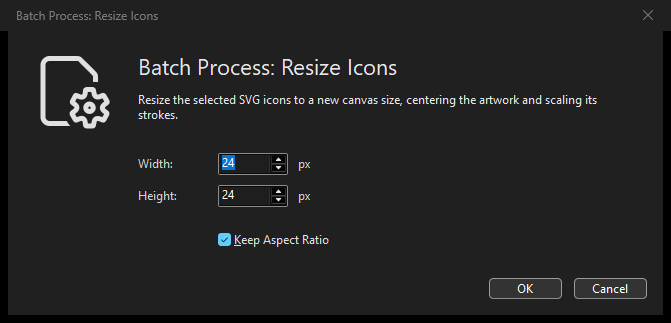
Resizing icon canvases: Dark Theme options dialog.
Choose to give the selected SVGs a new canvas size. Unlike Center and Fit, this operation changes each icon’s canvas dimensions.
Width and Height: target dimensions in pixels, from 8 to 1024. On first use they are 24 by 24; later uses restore the saved dimensions.
Keep Aspect Ratio: links the dialog’s width and height controls. Clear it to specify a rectangular target canvas. This controls the target dimensions, not whether the artwork is stretched.
Artwork is resized proportionally and centered, with strokes scaled, using the same transformation as the Editor’s Resize command. Every selected file receives the specified canvas dimensions; original aspect ratios may therefore leave space on one axis. Click OK to build the review, inspect before/after thumbnails and per-file states, then confirm the changed originals. Use Centering and fitting artwork instead when the canvas must stay unchanged. There is no Editor Undo; see Selection, preview and safety.
Centering and fitting artwork
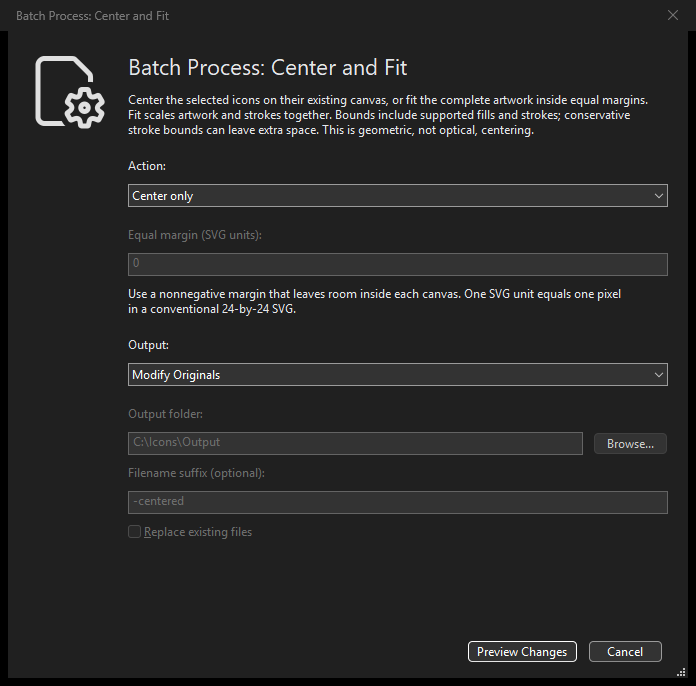
Centering and fitting artwork: Dark Theme options dialog.
Select saved SVGs and choose . Center only, the default, moves the supported painted artwork to the canvas center without resizing it. Fit inside margins scales the complete artwork proportionally, including its strokes, and then centers it. It does not stretch the horizontal and vertical axes independently or change the SVG canvas.
The fit margin is an equal, nonnegative inset in SVG user units, initially zero. One unit equals one pixel for a conventional 24-by-24 SVG. The margin must leave positive interior width and height for every selected icon. A horizontal or vertical line does not fail merely because one geometric extent is zero.
Bounds include supported fills and strokes. The vector engine uses a conservative envelope around caps and joins, which can leave extra space: this is geometric centering, not optical centering or exact pixel-edge fitting. Hidden and nonpainting elements do not determine the bounds, but remain in the transformed artwork. Empty/no-paint inputs are reported as unchanged. Identity operations do not rewrite source bytes. The root width, height, viewBox (including its origin), and preserveAspectRatio remain unchanged. Unlike the Editor’s Fit, batch fitting scales stroke widths with the artwork.
See Geometry output, review and limits for original/copy output, previews,
safety and supported SVG limits. MCP provides explorer_batch_center_fit;
see Centering, fitting, rotating and flipping SVG files.
Rotating and flipping artwork
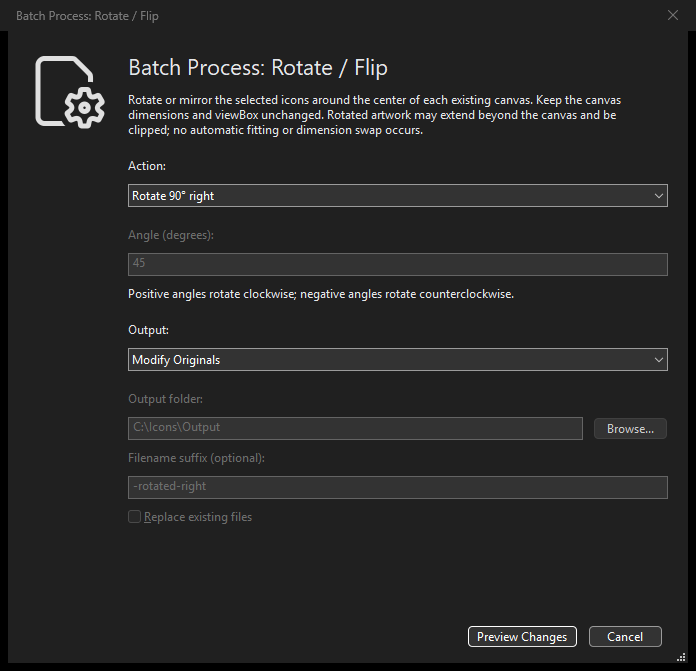
Rotating and flipping artwork: Dark Theme options dialog.
Select saved SVGs and choose
.
Choose one operation: Rotate 90° left, Rotate 90° right (the default),
Rotate 180°, Flip horizontally (left/right mirror), or Flip vertically
(top/bottom mirror), or Custom angle (degrees). Custom rotation accepts signed
decimal angles: positive clockwise, negative counterclockwise (for example,
-22.5). Full turns wrap modulo 360; zero or a whole number of full turns
leaves source bytes unchanged. The angle field is enabled only for Custom angle.
Each transforms the whole artwork about the existing
canvas/viewBox center, not each shape’s center or the artwork’s bounding box.
Canvas dimensions do not change. A quarter-turn does not swap width and height, fit the result, or expand the canvas, so artwork on rectangular canvases may be clipped; a custom angle can clip even a square canvas. Review the actual before/after previews. These transforms preserve source path geometry and do not divide by individual path dimensions; horizontal and vertical paths remain supported.
In IconVectors 2.10, geometry results also report measured canvas-overrun warnings in originals and copy workflows. They distinguish overrun already present in the input from newly introduced or increased overrun and identify the affected sides in SVG user units. Stroke bounds may be conservative: a warning is a reason to inspect the before/after preview, not proof that exactly that many rendered pixels disappear. The canvas is still unchanged; the warning does not automatically fit or crop the artwork.
MCP provides explorer_batch_rotate_flip; see Centering, fitting, rotating and flipping SVG files.
Geometry output, review and limits
Both commands default to Modify Originals. Choose Create Copies to keep
the source SVGs unchanged, then choose an output folder and an optional filename
suffix. Suggested suffixes are -centered or -fit for Center and Fit,
and -rotated-left, -rotated-right, -rotated-180, -rotated,
-flipped-h or -flipped-v for Rotate / Flip. Custom suffixes, including
underscores, are kept as entered. Leave the suffix empty to keep the source
filename in another folder: a copy can never overwrite its own source, even
with replacement enabled. The default folder is the current Explorer folder.
Replace existing files is off by default; any replacements must be explicit
in the preview.
Copies cannot overwrite a selected source, an alias of a source, or the current
Editor document.
Choose Preview Changes and inspect Ready To Batch Process: Center and Fit or Ready To Batch Process: Rotate / Flip. Review the options, selected/hidden counts, per-file results and before/after images. Copy mode also shows the exact output paths and replacement count. If the representative preview cannot render, the command does not enable a successful-looking apply. Cancel leaves source and output files untouched.
These filesystem operations have no Editor Undo, including copy creation. Back up or commit important originals before modifying them. Copy mode leaves the source files unchanged; its informational footer does not imply that existing destination replacements are undoable. Changed sources or destinations require a new plan. Staging, rollback and recovery reporting use the existing batch safeguards. Never treat a partial result as a successful whole batch.
Ordinary icon geometry, groups, supported presentation styles, local linear/radial
gradients and symbolic currentColor are supported. Source paths, definitions,
comments and metadata are retained. Unsupported or unsafe input is reported
rather than flattened or partly rewritten. The initial boundary excludes text/
fonts, images, use/symbol references, nested viewports, root transforms, stylesheet
selectors, filters, clipping/masks, patterns, markers, vector-effect and unsupported
CSS geometry/transform constructs. External resources and active content are not
loaded. Without a viewBox, only supported definite numeric/px canvas dimensions
are accepted; percentage/ambiguous dimensions are reported.
Outlining strokes
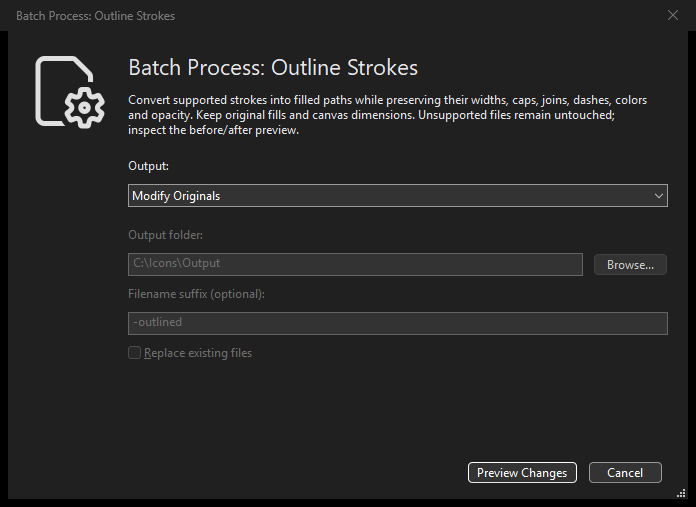
Outlining strokes: Dark Theme options dialog.
Select saved SVG icons and choose . This converts supported visible strokes into filled vector paths while retaining the original fills, stacking order and canvas. There is no new width or cap setting: the operation uses each stroke’s existing width, caps, joins, miter limit, dashes and opacity.
For a stroke-only shape with an effective fill="none" (including an
inherited or inline declaration), or an SVG line, the old shape is replaced
directly by one filled outline path. No invisible copy of the original shape
or new wrapper group is added. Its position in the existing hierarchy, ID,
local transform, opacity and metadata are retained. Shapes with a visible fill
keep that fill and the outline together; existing parent groups are preserved.
Ordinary paths, compound paths and basic shapes with solid or symbolic
currentColor strokes are eligible. Supported inline and inherited styles
are resolved without discarding unrelated definitions or metadata. Authored
transforms remain local; element/group opacity is not applied twice when the
fill and outline need separate children. Hidden or nonpainting strokes are
preserved, not silently made visible. A file with no applicable stroke keeps
its original bytes.
On otherwise supported, filter-free SVGs, legacy enable-background
attributes and inline styles are accepted and preserved: accumulate,
inherit, new, or new with four finite, unitless numbers (x, y, width,
height; width and height nonnegative), such as new 0 0 24 24. This
compatibility allowance does not add filter support;
malformed values and other unsupported constructs are still diagnosed.
Outline Strokes does not outline gradient/pattern strokes or guess at unrepresentable geometry. Unsupported dashes or degenerate strokes, complex CSS, use/symbol references, text/images, nested viewports, filters, masks/clips, markers, vector-effect, pathLength and non-default paint-order are diagnosed. An unsupported target leaves that whole file untouched; it is not partly converted and a failed dashed outline is never replaced with a solid stroke. Review every diagnostic and the before/after images.
Symbolic currentColor stays symbolic. If cached renderer paint ever disagrees
with the effective authored color, the defensive
outline_current_color_renderer_context diagnostic leaves that whole file
untouched instead of silently changing its appearance or baking in RGB. Report
the diagnostic rather than assuming the SVG is invalid.
For output and confirmation, see Outline and gradient output, review and safety.
MCP provides explorer_batch_outline_strokes; see Batch outlining and automatic gradients.