Working with Color Palettes
Overview
The PALETTES page in the Colors pane lets you manage reusable swatches and quickly apply them as fill or stroke colors. Palettes are stored as .axpal files (Axialis format), with optional import from .aco (Adobe Color) files.
To open the palette storage folder directly from the application, use .
Open the Colors Pane
You can show or hide the panel from the main menu:
The pane is dockable and can be placed anywhere in the workspace. Choose the PALETTES tab for palette management or COLORS for the compact defined-color picker described in Working with Colors.
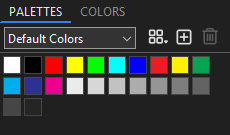
The PALETTES page: choose a palette, then left-click a swatch for Fill or right-click for Stroke.
Palette List and Toolbar
At the top of the panel:
A palette drop-down lists all available palettes.
A palette menu button provides palette commands.
New Swatch and Delete Swatch buttons manage individual swatches.
Palette Commands
Open the palette menu and use the following commands:
- Add Palette
Creates a new empty palette and saves it as an .axpal file.
- Remove Palette
Deletes the selected palette file (not available for the default palette).
- Rename Palette
Renames the palette and its .axpal file.
- Sort Swatches
Sorts swatches by Hue, then by brightness if the hue is identical.
- Add Icon Colors
Adds all colors currently used in the icon (fill and stroke), removing duplicates and sorting by Hue.
- Recolor Icon
Recolors the current icon using only colors from the selected palette. Each source color is replaced with the visually closest swatch color.
- Load Palette…
Imports a palette file from anywhere on disk (.axpal or .aco). Imported palettes are saved as new .axpal files in the palettes folder. If a palette name already exists, an index is added automatically.
- Save Palette…
Exports the selected palette to any location as an .axpal file.
Note
.aco palettes are read-only once loaded. Import them to create an editable .axpal copy.
Working with Swatches
Selecting and Applying Colors
Left-click a swatch to set the fill color.
Right-click a swatch to set the stroke color.
The Control Bar updates to reflect the chosen color.
Rename a Swatch
Double-click a swatch to rename it.
Add a Swatch
Click New Swatch to add a color to the selected palette.
Delete a Swatch
Click Delete Swatch to remove the currently selected swatch.
Or drag a swatch outside the list to delete it.
Reorder Swatches
Drag and drop swatches within the grid to change their order. A guide line shows where the swatch will be inserted.
Add Color to Palette from the Control Bar
When you open the fill or stroke color menu in the Control Bar, a command Add Color to Palette appears. It adds the current color to the selected palette using the HTML color string as the swatch name. This command is disabled for None, currentColor, or Gradient.
Recolor the Whole Icon with the Selected Palette
Two commands are available:
PALETTES page menu –> Recolor Icon
Both commands apply the same algorithm:
Every fill/stroke color in the current icon is evaluated.
The closest swatch color in the selected palette is found.
The icon is rewritten using only palette colors.
Note
The operation is undoable with Ctrl+Z.