Working between Explorer and Editor
Browse a library, open an icon, edit it and return to the same place without reopening folders. The two workspaces share one application window and keep their own relevant selection and display state.
Creating an icon
Choose New Icon in the Explorer header or menu. The New Icon dialog opens with the same Explorer folder context when you use File > New or Ctrl+N while Explorer is active. In each case the dialog opens with Name focused and selected: type the name and press Enter. The new document remembers the Explorer folder that was open when you chose New Icon. Save, Save As, and a save prompt initially offer that folder, even if you subsequently browse elsewhere. Nothing is written until you save.
Explorer > Auto Save Icons is an optional setting, off by default. When
enabled, opening another icon from Explorer saves the modified Explorer-opened
or Explorer-created document first. A new icon uses its name plus .svg in
the remembered folder. Invalid names or existing files require an explicit
Save As decision; automatic saving never silently overwrites a name collision.
Unavailable folders, write failures, or changes made to the source file by
another application stop the switch so you can save manually.
This option is separate from timed crash-recovery saving. It does not save just because you switch workspaces, close an icon, or quit. Normal closing still asks about unsaved changes. An untouched blank icon can be saved explicitly, but is not automatically written when switching to another icon.
Opening a tile in the Editor
Double-click a visible tile or press Enter while the thumbnail grid has focus to open exactly that tile in the existing Editor. A screen reader or other accessibility client can invoke Open File, the virtual item’s default action, with the same result. The context menu’s default Open Icon command uses that same route. Thumbnail readiness does not matter: Loading, available, and unavailable previews all use the actual SVG file.
If several files are selected, only the tile that was double-clicked, focused for Enter, or invoked by accessibility opens. It becomes the single selected and active return target. A missing, unreadable, or malformed file uses the normal Editor open error and leaves the current document and Explorer state intact. A changed but still-valid SVG opens its current contents. This does not automatically reload an already open document when an external program changes it. Auto Save’s external-change safeguard is separate: it stops an automatic save/switch when the source has changed on disk.
Opening uses the same document identity and Save/Discard/Cancel prompt as , unless Auto Save Icons is enabled for a modified Explorer-origin document. Choosing Cancel, cancelling Save As, or a failed save leaves the edited document untouched and does not open the tile. An equivalent spelling of the file already open activates it without loading a duplicate.
Press Shift+Enter, Shift-double-click an SVG, or choose Open Icon in a New Window… to open the target in its own IconVectors window. IconVectors first activates the current or another existing application window that already owns the document. Only when no window owns it does IconVectors launch a new process through the normal file-startup route.
When the open Editor document belongs to the current folder and is visible, its tile has a blue circular badge containing the light Editor glyph in the upper-right corner of the thumbnail preview. A minimal inset keeps the complete circle inside the preview at every thumbnail size and display scale. The badge is an overlay only: it does not change or rerender the thumbnail and may also appear over a loading or unavailable preview. Accessibility clients describe that one canonical tile as Open in Editor.
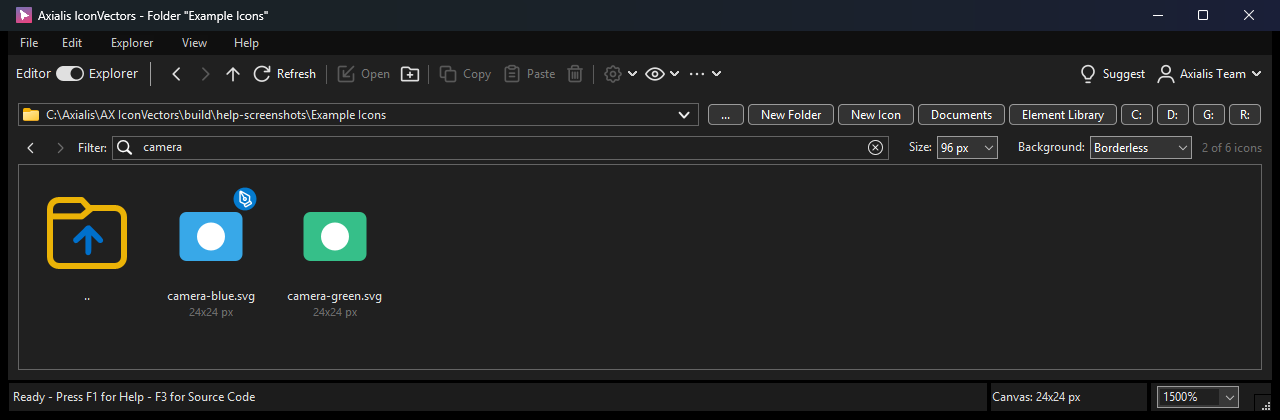
The Editor badge identifies the open icon while you browse. Use F4 to return to it, or open another tile to continue through the folder.
A pointer double-click is drained before the Editor canvas becomes interactive. The selected drawing tool remains selected, but the activating pointer sequence cannot create a Rectangle, Ellipse, Line, or other unintended object in the opened file.
Press Ctrl+Tab, or choose (F5), to return. Ctrl+Tab toggles the embedded Editor and Explorer workspaces and restores the last applicable child focus in the destination. The current folder, filter, selection, focused tile, scroll position, thumbnail size, background, and compatible cached thumbnails remain available; opening alone does not rescan the folder.
Closing an icon opened or created from Explorer returns to that retained Explorer workspace. Escape closes an icon like Ctrl+W when the Editor canvas is idle. During drawing, text editing, or a dialog, Escape keeps its existing cancellation role; it does not also close the icon on that press. The explicit Open Icon in a New Window command retains its independent window behavior and does not transfer the originating Explorer session.
The Explorer menu occupies the same menu-bar position as the Editor’s Icon menu. While Explorer is active, Icon, Element, and Path are hidden and their Editor commands cannot modify the inactive document. Returning to Editor restores all three menus in their original positions and restores their shortcuts, including Ctrl+R for Recent Files and Ctrl+Shift+R for Snap to Grid. Explorer’s filesystem Rename and Delete commands are not duplicated in Edit while Explorer is active. Use F4 or to return directly to Editor.
Choose or press Shift+F5 to launch an independent IconVectors process directly in the Explorer workspace. It restores the normal Explorer folder state and starts with no SVG document open in its Editor. It does not switch or block the originating window. F5 continues to switch only the current window.
Explorer full-workspace context
Explorer uses the full application workspace. The reactive Control Bar remains visible, while the Editor-only Tools, Colors, Preview, and Layers panes are hidden and their pane-visibility commands are unavailable. Returning to Editor restores the intended Editor pane visibility and layout exactly; Explorer’s temporary pane suppression is never saved as the Editor layout.
Quick workflow reference
Shortcut or action |
Result |
|---|---|
F5 / F4 |
Show Explorer / show Editor in this window. |
Ctrl+Tab |
Switch between the two workspaces, retaining their working state. |
Ctrl+Shift+O |
Choose an Explorer folder. |
Enter / double-click |
Open the active/focused tile; other selected files are not opened. |
Shift+Enter / Shift-double-click |
Open an icon in another application window. |
Shift+F5 |
Start another Explorer window. |
Ctrl+N in Explorer |
Create an icon associated with the current Explorer folder. |
Ctrl+S |
Save the current Editor document. |
Ctrl+W / Escape with an idle Editor canvas |
Close the icon; Explorer-origin icons return to Explorer. |
Ctrl+R in Explorer |
Refresh the current folder. |
Ctrl+A in the grid |
Select all visible SVG files for a batch or file operation. |
Ctrl+C / Ctrl+V / Ctrl+D in Explorer |
Copy file paths / paste SVG files / duplicate selected SVG files. |
Ctrl+Shift+R / Delete in Explorer |
Rename / delete eligible visible files or a supported child folder. |
Shortcuts depend on keyboard focus: typing in the path or Filter field edits that field rather than navigating the thumbnail grid. In the Editor, Ctrl+R means Recent Files and Ctrl+Shift+R means Snap to Grid. See Keyboard shortcuts for the full application reference.
For a fast review loop, open a folder, double-click an icon, edit it, and press F5 to choose the next icon. Enable Auto Save Icons only when you want opening the next Explorer icon to save your edits. To compare two icons side by side, use Shift+Enter for the second one instead.