Batch colors, palettes and strokes
Applying a palette
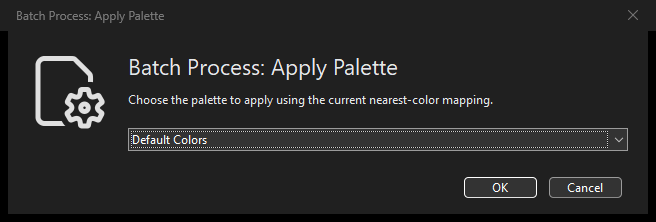
Applying a palette: Dark Theme options dialog.
Choose to map supported artwork colors to the closest available colors in an installed palette. This is useful for bringing a collection into a common color family; use Replacing an exact color for one exact color replacement instead.
Select a palette from the list, then click OK to build the preview. Only palettes containing usable colors appear. The list uses the palettes available to the application; opens their folder. If a remembered palette has been removed, choose another one: IconVectors does not silently substitute a different palette.
The mapping uses the same nearest-color behavior as the Editor. There is no per-color mapping table, color-distance tolerance or geometry option here. Inspect the before/after preview, palette name and per-file results, then confirm to modify changed original SVG files. Symbolic or unsupported paints must not be assumed to match the visible interface color. Close selected sources open in the Editor first. There is no Editor Undo for these disk writes. See Selection, preview and safety for preview and recovery safeguards.
Changing existing line strokes
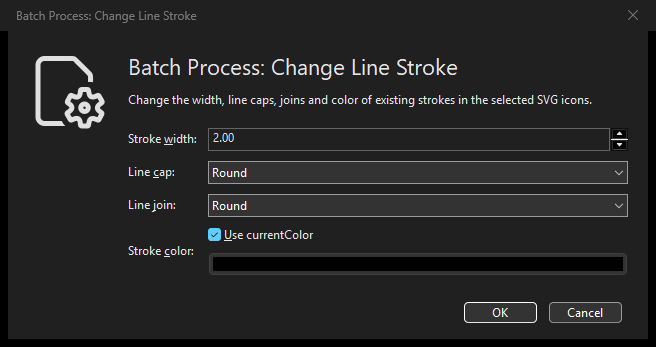
Changing existing line strokes: Dark Theme options dialog.
Choose to give existing strokes a common appearance.
Stroke width: width in SVG units, from 0 to 1024. In a conventional 24-by-24 icon, one SVG unit corresponds to one canvas pixel. Zero makes the stroke nonpainting.
Line cap: Butt stops at the endpoint; Round adds a rounded cap; Square extends the end with a square cap.
Line join: Miter forms a pointed join, Round rounds the join, and Bevel cuts off the corner.
Stroke color: choose a fixed color with the color button, or enable Use currentColor for theme-responsive symbolic SVG paint. The fixed button is disabled while currentColor is selected.
Click OK to review the options and before/after result, then confirm to
modify the changed originals. These settings apply together to existing
stroked shapes, including inherited strokes. They do not add a stroke to
fill-only shapes or stroke="none" artwork. Existing fill paint is not a
stroke-color target. No Editor Undo is available; use the common
batch review safeguards.
Replacing an exact color
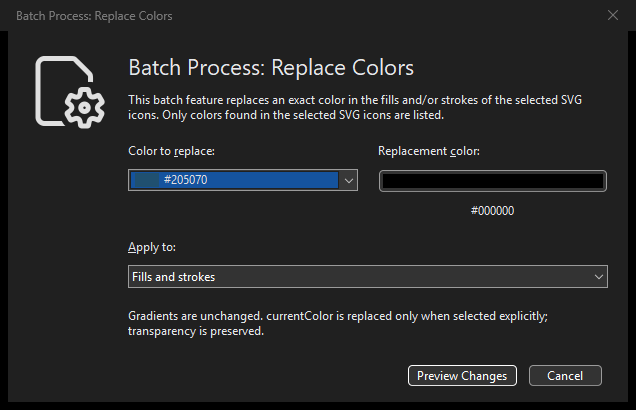
Replacing an exact color: Dark Theme options dialog.
Select SVG icons and choose
.
The explanatory text describes the operation. Choose Color to replace
from the drop-down list of distinct fill/stroke colors detected in the selected
SVGs. Each RGB entry shows a color swatch beside its hexadecimal value.
Equivalent RGB spellings appear as one color; symbolic currentColor
appears separately with its symbol when present. The list refreshes for the
chosen fill/stroke scope. Empty lists disable the preview, and files that cannot be scanned are
reported in the dialog. Set Replacement color, then choose
Fills and strokes, Fills only, or Strokes only. The replacement
color button follows the Use Axialis Color Picker Dialog preference in
F2; cancelling the picker retains its previous color. Batch color
buttons display their swatch across the available button width, with a small
two-pixel inset inside the border. These controls
do not change the Editor’s current fill or stroke. Valid options follow the
shared batch settings behavior across instances.
Replacement matches an exact RGB color, not the spelling of the SVG value:
supported equivalents such as #F00, #ff0000, rgb(255,0,0) and
red match the same source color. There is no tolerance or closest-color
matching. The original paint transparency and separate opacity values are
preserved. Inherited solid paints and the implicit default black fill are
eligible; an absent stroke is not turned into an outline.
Choose currentColor in Color to replace to replace those fill/stroke
paint occurrences with the chosen solid RGB color. This matches the SVG keyword
itself, not its apparent color in the current theme or the value of the SVG
color property. When an RGB source is selected, currentColor paints
remain unchanged. The replacement is always solid RGB; this feature does not
convert solid colors to currentColor. Use the separate
Convert to currentColor command for that.
none, gradient and pattern references, gradient stops, filter colors and
the SVG color property are not replaced. Geometry and numeric precision
remain unchanged. Choosing the same source and replacement RGB color, or
finding no eligible match, leaves the file bytes unchanged.
Click Preview Changes to inspect the colors, fill/stroke scope, selected and hidden counts, changed/unchanged counts, file diagnostics, and a representative before/after sample. The review opens tall enough to show its results list when the display permits; on smaller displays, scroll the review body. The bold warning and action buttons remain visible below it, using the same warning-icon presentation as Resize. Only Process changes the selected SVG files on disk. Back up or commit your files first: this operation has no Editor Undo entry and does not retain a permanent backup after a successful apply. Cancel before applying leaves the SVG files unchanged.
The shared batch safeguards apply. A target open in the current Editor must be closed or excluded. Changed, removed or unreadable inputs can invalidate the plan; inspect the result and create a fresh plan rather than retrying it. Unsupported and malformed files remain untouched, with a per-file diagnostic. If a failure cannot be rolled back fully, use the reported recovery paths; do not treat the result as success or delete those recovery files.
Replace Colors supports ordinary graphical elements, inherited paints,
inline styles and simple SVG style-sheet selectors. It does not rewrite
use instances, animation, complex or external CSS, !important paint
declarations, or unknown paint syntax. Files whose non-target resources cannot
be preserved are reported as unsupported rather than partially recolored.
Safe standard SVG 1.1 declarations
are accepted without downloading a DTD; custom entities remain unsupported.
Valid UTF-8 byte-order marks are accepted and preserved by the source-preserving Replace Colors workflow, including output validation.
The matching MCP tool is explorer_batch_replace_colors with separate
plan and apply requests. See Replacing an exact color in saved SVGs for an
example. This is not palette remapping, SVG optimization, or conversion to
currentColor.
How color batches edit SVG source
In IconVectors 2.10, Replace Colors and Convert to currentColor update the local attribute or inline style value that actually controls a changed paint, instead of always adding another override. Safely superseded local values of that same changed property are removed. Required fill/stroke-opacity edits for currentColor conversion follow the same rule.
When a paint comes from a parent, a shared stylesheet or the SVG default, the
result still uses a local override. Parent declarations, shared rules, resources
and the SVG color property are not rewritten to shorten the file. Paint
transparency, unrelated properties, geometry, metadata and comments are
preserved; bytes outside the targeted source edits remain unchanged.
This is not a general cleanup command. A no-match, same-RGB replacement or already-converted file is left byte-identical, even if its source already contains redundant values. Unsupported SVG/CSS or an unsafe source mapping leaves the file untouched and reports a diagnostic. The supported input limits and preview/apply safeguards are unchanged.
Adjust colors across SVG icons
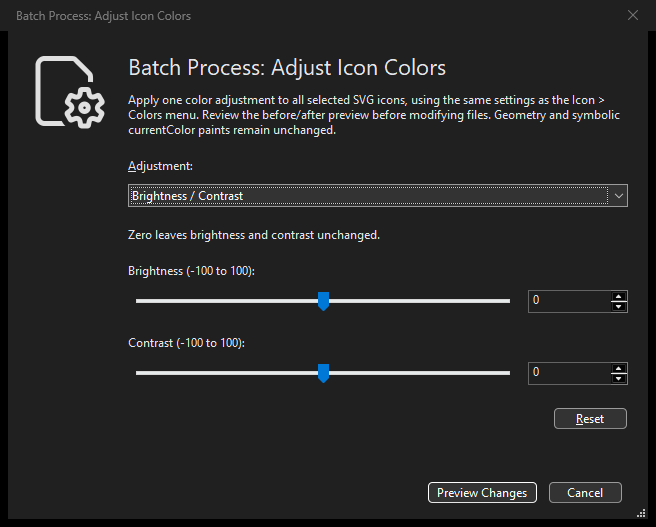
Adjust colors across SVG icons: Dark Theme options dialog.
Choose to apply one color adjustment to every selected saved SVG:
Brightness / Contrast: values from -100 to +100; zero is neutral.
Hue / Saturation: hue from -180 to +180 degrees and saturation from -100 to +100; zero is neutral.
Levels: shadow and highlight input values from 0 to 255, with shadow less than highlight. The neutral range is 0 to 255.
Desaturate: turn supported colors into grayscale.
Invert: invert supported RGB colors.
Use sliders or numeric fields, and Reset to return to neutral/default values. This applies the same chosen settings to all selected icons; it does not guess different optimal corrections for each file. Auto Gradient is a separate operation.
Review the before/after example and all-file results under Ready To Batch Process: Adjust Icon Colors. Neutral or inapplicable settings leave files unchanged. Process modifies the changed source SVGs on disk; the warning footer explains that this cannot be undone through Editor Undo. Back up or commit important files first. Unsupported/malformed inputs are reported, not silently claimed as successfully adjusted. Cancel does not apply the reviewed changes, and stale inputs require a new plan.
Adjust Icon Colors and Make Icon Versions use self-contained SVG input safety checks. The accepted standard
SVG 1.1 declaration needs no network access; custom entities and external resources
are rejected. They use the existing Editor color semantics, not arbitrary CSS
rewriting. Geometry is not intentionally changed by color processing.
As in the existing Icon commands, color adjustments operate on supported
hexadecimal paints; named-color and rgb(...) spellings are not converted by
this engine. Symbolic paints remain symbolic. Complex CSS and unsupported SVG
elements are reported instead of being partially rewritten. Check the preview
and unchanged-file counts, especially for icons driven by currentColor.
Matching MCP tools are explorer_batch_make_icon_versions and
explorer_batch_adjust_colors with separate plan/apply requests.
Converting paints to currentColor
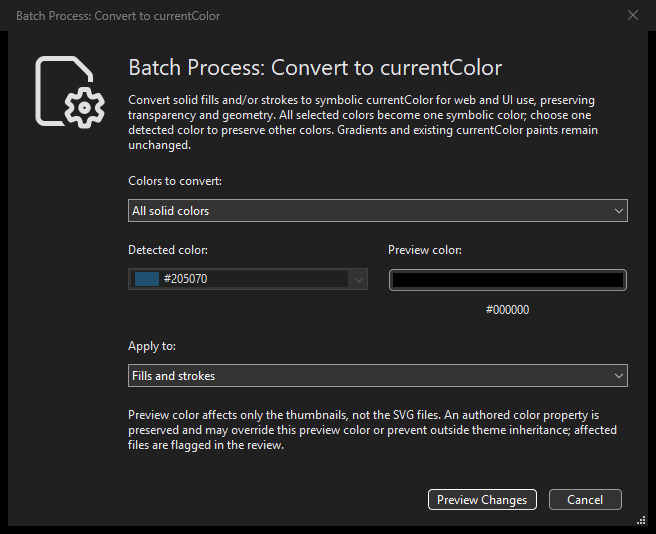
Converting paints to currentColor: Dark Theme options dialog.
Select saved SVGs and choose . Use All solid colors (the default), or One selected color to choose an exact RGB value from detected paints. Different spellings and alpha values of the same RGB share one source entry. Choose fills, strokes, or both (the default). All-solid conversion collapses distinct targeted colors into one symbolic paint.
The operation converts supported literal paints, including inherited colors
and implicit black fill. It never creates an absent stroke. Already-symbolic
currentColor, none, gradients, patterns and resource paints such as
gradient stops and clip/mask contents remain unchanged. It preserves geometry,
text, IDs, references, metadata and comments.
Paint transparency is retained by combining the original paint alpha with the
effective fill/stroke opacity. Group and element opacity remain unchanged.
Unsupported paint, opacity or CSS semantics are reported without partially
rewriting the file. A translucent authored color that would change a
converted nontransparent paint’s alpha is unsupported.
Existing SVG color declarations are preserved. A fixed authored color can
keep the converted paints tied to that color; the preview warns that outside
theme inheritance may therefore be limited. Preview color, initially black,
controls only the fallback used in both previews. It uses the F2 picker
preference and never changes the output paint or Editor brush. An authored
color may override this fallback. Valid settings are saved between instances;
a previously chosen source color is not silently replaced if absent from the
next selection. See Remembering batch options and returning from preview.
Choose Preview Changes, inspect Confirm Convert to currentColor and its
Ready To Batch Process: Convert to currentColor heading, before/after images,
all-file results and warnings, then click Convert to currentColor. Sources
are modified in place without Editor Undo; back them up or commit first. Cancel
leaves the source files unchanged. Already-converted/no-match files retain exact
bytes and timestamps. The shared current-Editor, stale-plan and recovery
safeguards in Selection, preview and safety apply.
See Converting selected paints to currentColor for explorer_batch_convert_to_current_color.
The paint-source editing rules apply to both conversion and Replace Colors;
conversion still preserves the original effective transparency.
Applying automatic gradients
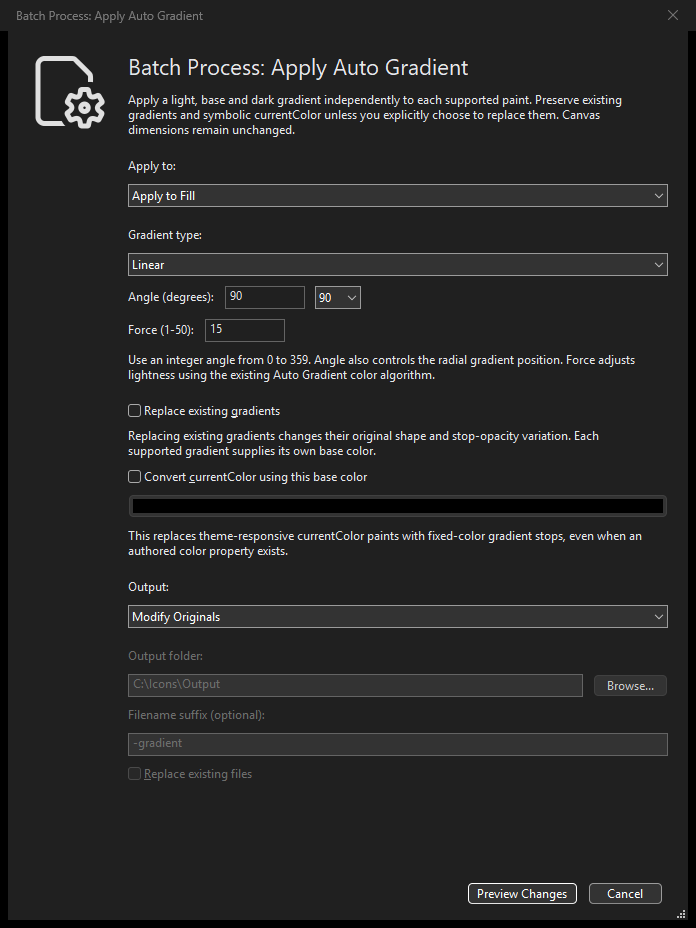
Applying automatic gradients: Dark Theme options dialog.
Choose to generate a light/base/dark gradient independently from each targeted paint’s own color, using the same color adjustment as the Editor’s Auto Gradient.
Target: Fill (default), Stroke, or Both.
Type: Linear (default) or Radial.
Angle: integer degrees from 0 to 359; default 90, with 45-degree presets. Angle affects radial positioning too. This uses the Editor’s Auto Gradient convention, not the batch Rotate / Flip convention.
Force: integer from 1 to 50; default 15. This controls the lightness difference around the paint’s base color.
Replace existing gradients: off by default. When enabled, supported local gradients supply a base color through the Editor’s midpoint/average rule. Their previous shape and individual stop-opacity variation are replaced. Existing definitions referenced elsewhere are not changed in place.
Convert currentColor using this base color: off by default. When enabled, choose the explicit RGB base; the initial value is black. This replaces the symbolic paint with fixed-color gradient stops, even if the SVG declares its own
color. The chosen RGB replaces that color’s RGB, but its authored alpha is retained, separately from fill/stroke/element/group opacity. The resulting paint no longer follows an external theme’s currentColor.
The base-color button is enabled only for currentColor conversion and follows the Use Axialis Color Picker Dialog preference in F2. It does not choose one global color for ordinary solid paints: each keeps its own base. These batch options do not change the Editor’s Auto Gradient defaults.
By default, existing gradients and symbolic currentColor paints are preserved
and reported. none is never turned into paint; an absent fill uses SVG’s
normal black default and an absent stroke remains absent. Solid paint alpha and
separate fill/stroke/element/group opacity are retained. Generated gradients
use ordinary local SVG definitions and collision-free IDs. Supported horizontal
and vertical stroked lines use a finite local gradient space rather than an
empty object bounding box.
In IconVectors 2.10, identical new gradient definitions are reused within each processed SVG for that pass. All gradient details must match, including coordinate space, mapping, stops and transparency, not just the base color. Existing definitions are never merged or deleted, even if their names look automatically generated. IDs remain collision-free within the document, not globally unique across separate files.
Generated coordinates use cleaner numeric text: cardinal directions are exact, and normalized coordinates use bounded, trimmed decimal formatting. Paint alpha, mapping matrices, unrelated geometry, the color algorithm and the document’s global precision setting are unchanged. This is not a general SVG optimizer. Default preservation and no-op byte identity remain. With Replace existing gradients enabled, repeated processing can still write new gradients and retain old definitions; do not assume repeated replacement is a no-op.
Unsupported paints, referenced or filtered geometry and unsupported CSS are
reported instead of stripped away. An unrepresentable target leaves the file
untouched. Always review the appearance and preserved-paint diagnostics before
applying. MCP provides explorer_batch_auto_gradient;
see Batch outlining and automatic gradients.
Outline and gradient output, review and safety
Both commands default to Modify Originals. Create Copies keeps sources
unchanged and enables output folder, filename suffix and Replace existing
files. On first use, the current Explorer folder, suffix
-outlined or -gradient and replacement off are offered; later uses
restore the valid saved options. The suffix is optional:
leave it empty to keep the source filename in another folder. Custom suffixes,
including underscores, stay as entered. Copy destinations cannot overwrite a
source, including through an alias, or an open Editor document, even with
replacement enabled.
Click Preview Changes, then review Confirm Outline Strokes or Confirm Apply Auto Gradient. The Ready To Batch Process heading is followed by the exact parameters, selected/hidden counts, per-file states, diagnostics and representative before/after images. Copy mode also lists output paths and replacements. A preview failure is not successful completion; Cancel leaves source and output files untouched. Apply only after reviewing unsupported and unchanged entries. In copy mode, any unsupported or failed selected input prevents all copy creation; a supported unchanged result is copied byte-for-byte.
These are filesystem operations, with no Editor Undo. Back up important originals before modifying them. Copy mode leaves sources unchanged, but any approved replacement of an existing output is still a disk write. Changed inputs or destinations, or a stale captured Explorer context, require a new plan. The shared staging, rollback and recovery safeguards report what actually happened and retain recovery paths when necessary; do not treat a partial result as whole-batch success. The Explorer refreshes after completed writes without opening or changing an Editor document.