Creating bitmap icons, versions and badge overlays
Batch export to PNG and ICO
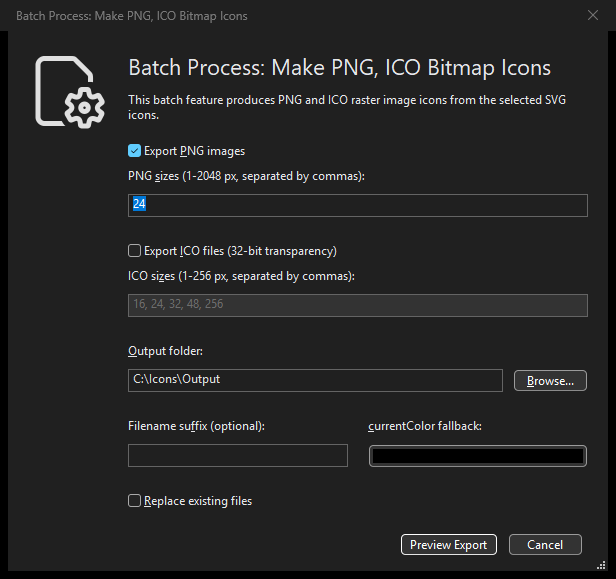
Batch export to PNG and ICO: Dark Theme options dialog.
Select SVG icons and choose . Choose PNG, ICO, or both, an absolute output folder, and pixel sizes. PNG sizes range from 1 to 2048; ICO sizes range from 1 to 256. Each enabled format accepts up to 32 unique sizes. ICO creates one multi-size 32-bit icon per SVG. All images use transparent backgrounds; the explicit currentColor setting defaults to black and is independent of the application theme.
Bitmap generation supports self-contained vector SVGs. For safety it rejects
embedded or linked images, scripts, foreignObject, external resources,
custom DTD/entity and external stylesheet declarations, and CSS escapes/comments or
@import in inspected attribute/style values. Local #fragment references
are supported. Unsupported inputs produce a diagnostic rather than silently
removing content or skipping the file; save a reviewed compatible source copy
or exclude the source when necessary.
The standard SVG 1.1 PUBLIC declaration referring to
http://www.w3.org/Graphics/SVG/1.1/DTD/svg11.dtd is supported without an
internal subset. Export ignores this declaration in its private rendering copy;
it does not download the DTD or change your SVG files. Custom entities and other
DTD declarations remain unsupported.
For folder.svg, PNG outputs are named folder_24x24.png (and so on),
while the ICO is folder.ico. An optional suffix appears after the source
name; leave it empty to add no extra text. The PNG size portion such as
_24x24 is always retained. Sources are never overwritten. Existing
destination files are protected
unless Replace existing files is explicitly enabled; collisions between
planned outputs must be resolved before export.
Review the preview, complete output list, total and hidden source counts, and replacement count before confirming. Like other batch previews, the Confirm Make Bitmap Icons dialog starts with a bold Ready To Batch Process: Make Bitmap Icons heading. Click Make Bitmap Icons to create the files. Its plain informational note explains that source SVGs remain unchanged, created bitmap files have no Editor Undo, and recovery files are reported when needed. There is no warning icon for this separate-file operation. A selected source with unsaved Editor changes must be saved or excluded first. Missing output folders are created only when export starts. Cancellation or a recoverable failure rolls back owned outputs; if recovery cannot finish, the result identifies retained recovery files. This filesystem operation has no Editor Undo entry and does not change the open document or its export preferences.
The matching MCP tool is explorer_batch_export_icons with separate
plan and apply requests. Export profiles and automatic recursive
folder export are not provided by this command.
Make Hot, Disabled and Dark Theme SVG versions
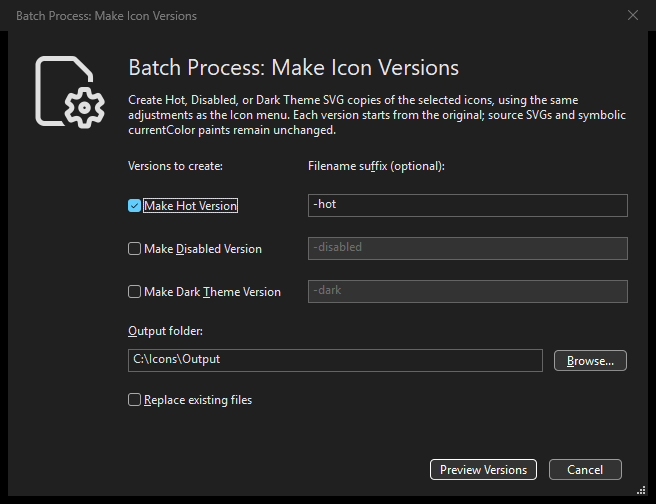
Make Hot, Disabled and Dark Theme SVG versions: Dark Theme options dialog.
Select saved SVGs and choose
.
Enable one or more versions, choose an output folder, and review the filename
suffix beside each enabled version. The defaults are -hot, -disabled
and -dark. For example, alert.svg can produce alert-hot.svg and
alert-dark.svg in a single operation. You can leave a suffix empty to keep
the source filename in another folder. When making several versions, each
must have a distinct destination; two empty suffixes would collide. Custom
suffixes, including underscores, are preserved exactly as entered.
Each version starts independently from the original and uses the corresponding
Icon-menu transformation. Hot changes color levels; Disabled desaturates and
uses the existing disabled-opacity behavior; Dark Theme inverts color lightness
while preserving hue and saturation. Dark Theme is not an automatic contrast
or accessibility guarantee. Symbolic currentColor remains symbolic.
The original SVG files remain unchanged. Replace existing files is off by default. Sources, another planned output, and the current Editor document may not be overwritten by a generated version. Resolve name collisions or change the output folder before continuing. Save or exclude selected sources with unsaved Editor changes first.
The confirmation begins with Ready To Batch Process: Make Icon Versions. Review the representative original and version previews, source counts, complete destination list and replacement count, then click Make Icon Versions. Planning and Cancel leave source and output files untouched. The information footer explains that creating separate files does not add an Editor Undo entry. Cancellation and failures use staging and recovery safeguards; retain any recovery files reported by the result.
Add badge overlays
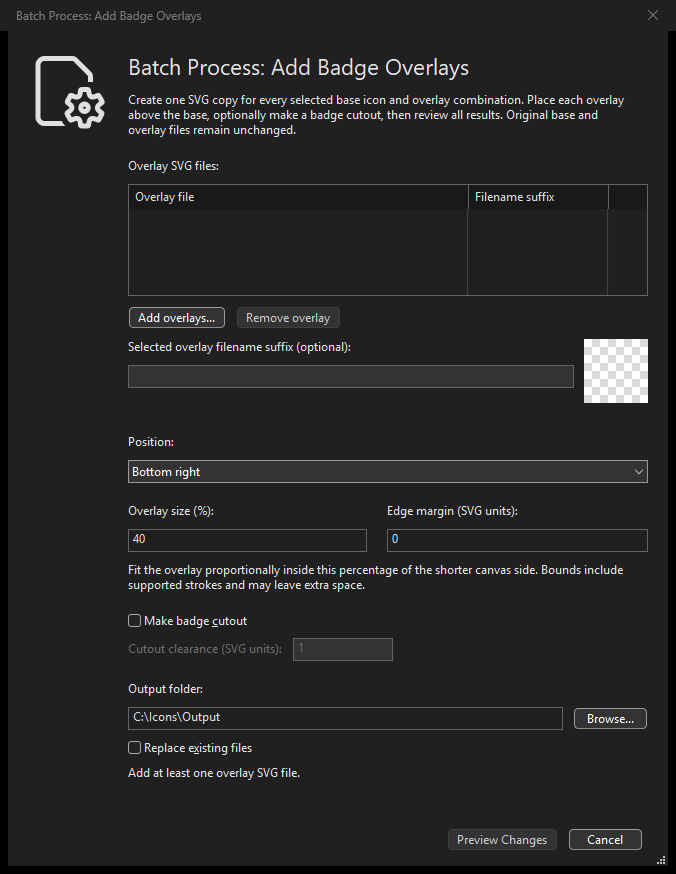
Add badge overlays: Dark Theme options dialog.
Select the saved SVGs to use as base icons, then choose . Add the overlay SVG files to the dialog. Each base is combined independently with each overlay: 40 base icons and 6 overlays produce 240 SVG copies, with one overlay per result. The base files, overlay files and open Editor document remain unchanged. This does not stack all overlays onto the same icon. One batch accepts at most 10,000 base/overlay combinations. Exceeding that limit rejects the plan; it does not silently omit pairs.
Use Add overlays… to choose the overlay SVGs. Select an entry to edit its individual Selected overlay filename suffix, or use Remove overlay to remove it from this batch. Removing an entry does not delete its source file.
Choose one of nine positions; the initial position is bottom-right.
Overlay size is a positive percentage, no greater than 100%, of the base canvas’s shorter side, initially 40%. The overlay’s supported painted bounds fit proportionally inside that square, including strokes, without changing its aspect ratio. Bounds are conservative; this is geometric placement, not optical fitting.
Edge margin starts at zero and uses base SVG units. A conventional 24-by-24 SVG has one such unit per pixel. Centered axes remain centered; impossible size/margin combinations are rejected rather than silently clipped.
Enable Make badge cutout to remove base artwork behind the overlay with the chosen clearance, initially one SVG unit. This is a geometric cutout, not an opaque background patch. With it disabled, the overlay is simply placed above the base.
Choose an output folder and review each overlay’s filename suffix. The
suggested suffix is - followed by the overlay’s basename. For example,
document.svg with overlay add.svg produces document-add.svg.
A suffix may be empty, but every destination must remain unique and must not
replace any source or open Editor file. To keep a source filename, choose a
different output folder. Replace existing files allows only explicitly
approved output replacement; it never overrides source protection.
Click Preview Changes. Confirm Add Badge Overlays starts with Ready To Batch Process: Add Badge Overlays and shows the base, overlay, output, hidden-selection and replacement counts. Review the destination list and select pairs to inspect their before/after images. Only Add Badge Overlays writes the planned copies. Back returns to the current options and overlay list; preview again to review a fresh plan. Cancel leaves source and output files untouched, while valid option edits remain saved. These output files are not part of Editor Undo, but the source SVGs remain unchanged.
The operation retains the base canvas and supported SVG paints, definitions,
local references and metadata. Overlay IDs are isolated from the base’s IDs.
Ordinary shapes, paths and groups with supported inline/inherited solid,
currentColor and local gradient paints are accepted. Stylesheet blocks,
use instances, text, images, masks, clipping paths, filters and external or
active resources are unsupported. Cutout additionally rejects gradient-painted
strokes; it does not silently replace a gradient or a dash pattern with solid
paint. Unsupported geometry or paint is reported with the affected input/pair
rather than approximated. External resources are not downloaded. This is not a
general-purpose SVG browser, automatic corner chooser or shadow generator.
Note
Add Badge Overlays
can repair duplicate IDs on ordinary artwork only when it can prove that
nothing refers to the repeated ID. In its private working copy of each base
or overlay, it keeps the first occurrence and assigns stable, collision-free
names to later occurrences. Your original files are never rewritten.
The preview reports the repair with the affected input path; MCP reports it
as overlay_duplicate_id_repaired during planning and successful apply.
This is not general SVG repair. Duplicate definition/resource IDs, ambiguous links, paint references or accessibility references, and unknown metadata or custom reference semantics remain blockers. Correct those IDs and their references together in the source application. See Add Badge Overlays rejects duplicate SVG IDs for details.
Base artwork repairs retain the ID’s stem:
a later b becomes b-2, then b-3, skipping all existing names.
The first occurrence and all unrelated IDs remain. Preview reports the exact
old/new names and occurrence. Badge artwork still uses its separate
namespacing policy. This does not rename previously generated output files;
use the reported mapping, not a guess that every b-* is related.
Changing a base, overlay or destination after preview invalidates the plan. The preview also retains its strict Explorer generation/revision checks. Rebuild the preview instead of applying stale results. The complete output set is staged before commit; failures use the normal rollback/recovery safeguards and report any retained recovery files. A partial set is not reported as a successful batch.
The matching MCP tool is explorer_batch_overlay_icons, with separate
plan and apply requests over the same composition and output service.